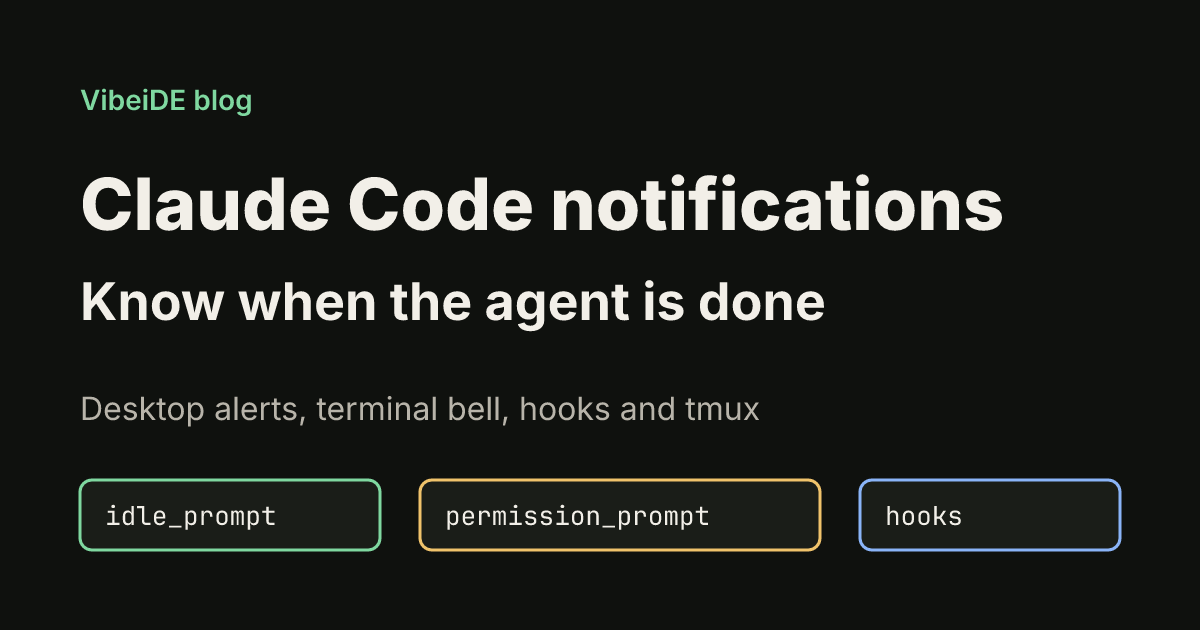
Claude Code notifications tell you when a long task has finished or when the agent is stuck waiting for your approval. Without them you end up checking terminal tabs every few minutes, which defeats the point of handing work to an agent. This guide shows what Claude Code notifies you about, how to get a desktop alert or a terminal bell in any terminal, how to write a Notification hook for a custom sound, and how to fix the cases where nothing arrives.
Every setting and command below was checked against the official Claude Code documentation as of October 2026: the terminal configuration page, the hooks guide and the hooks reference.
When Claude Code sends a notification
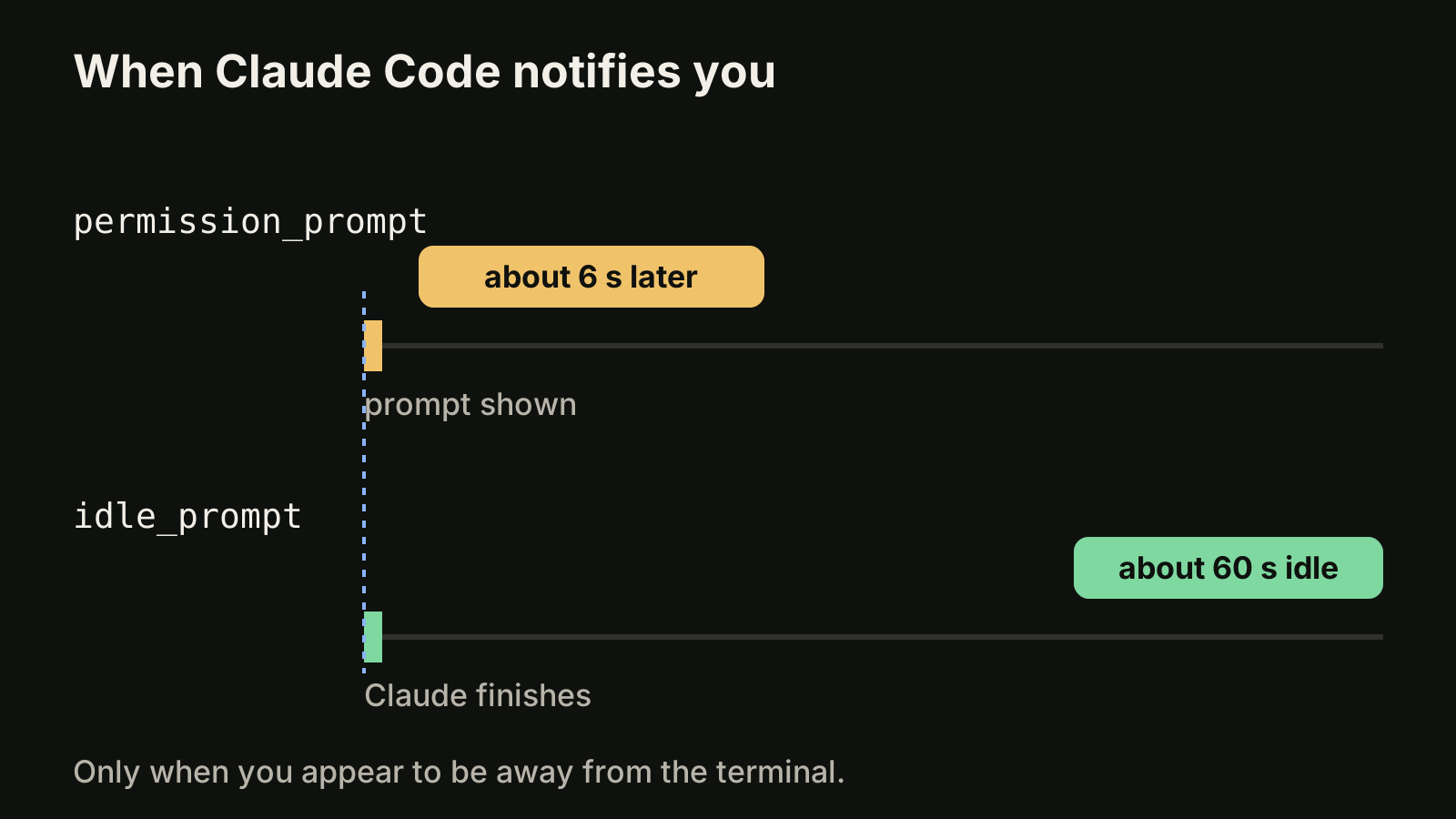
Claude Code fires a notification event when Claude finishes a task or pauses for a permission prompt and you appear to be away from the terminal. It does not ping you while you are typing. The hooks guide lists the timing for each notification type:
| Notification type | Fires when |
|---|---|
permission_prompt | Claude needs you to approve a tool use and the prompt has waited about six seconds |
idle_prompt | Claude finished responding about 60 seconds ago and you have not typed since |
auth_success | Authentication completes |
elicitation_dialog | An MCP server opens a form and you have not typed for about six seconds |
agent_completed | A background session finishes or fails, while agent view is open |
The two types that matter day to day are permission_prompt (the agent is blocked on you) and idle_prompt (the agent is done and the result is waiting). The other types exist mainly for MCP servers, background sessions and usage limit pauses.
Desktop notifications in Ghostty, Kitty and iTerm2
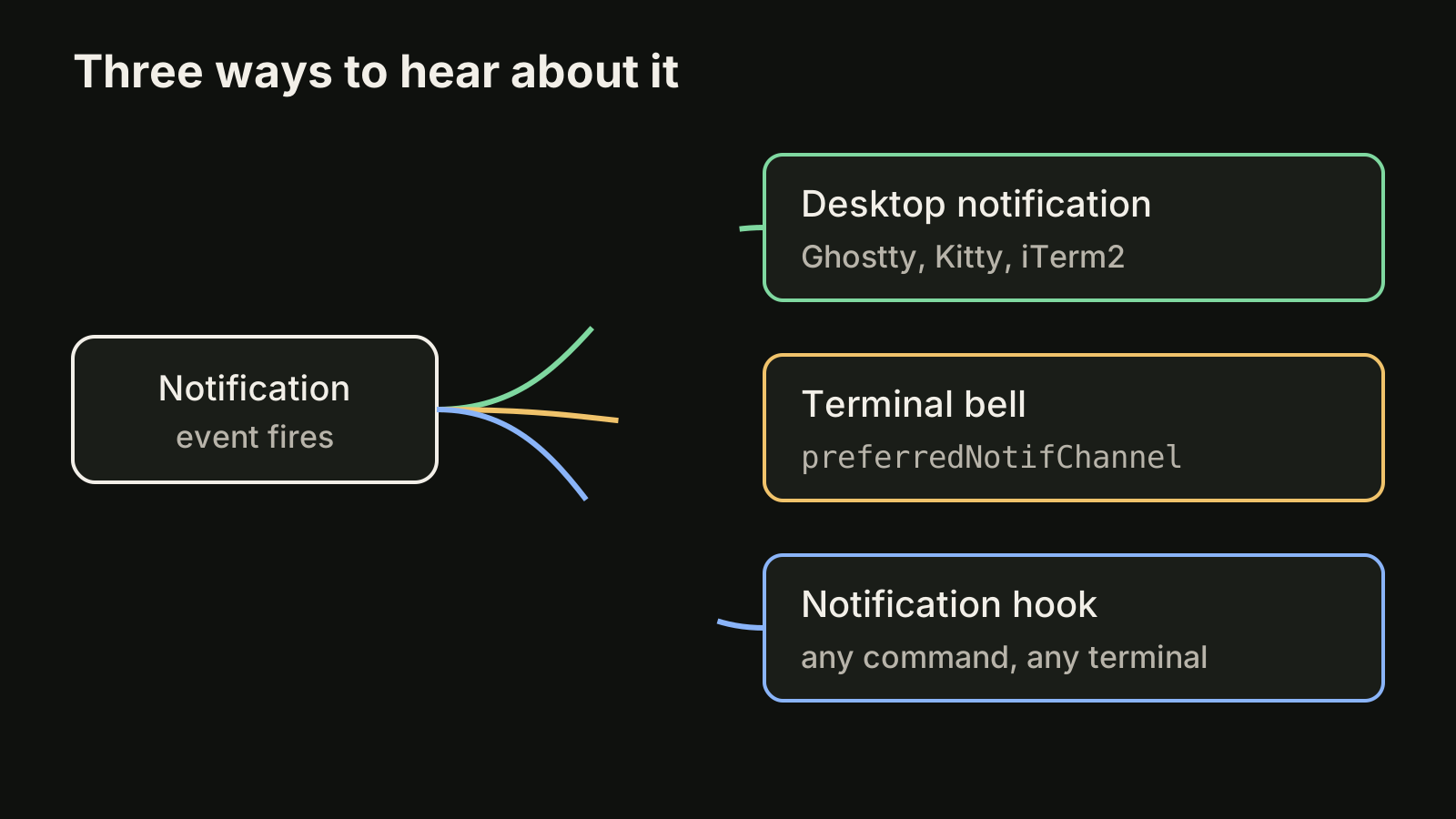
By default, Claude Code sends a desktop notification only in Ghostty, Kitty and iTerm2. Ghostty and Kitty forward it to your operating system's notification center without further setup, and the notification even reaches your local machine when Claude Code runs over SSH.
iTerm2 needs one change before alerts appear:
- Open Settings, Profiles, Terminal.
- Check Notification Center Alerts.
- Click Filter Alerts and enable Send escape sequence-generated alerts.
If notifications still do not show up, check that the terminal app has notification permission in your operating system settings.
Turn on the terminal bell in any other terminal
Apple Terminal, Warp, the VS Code integrated terminal and most others do not receive the built-in desktop notification. The simplest fix is the terminal bell. Add this to ~/.claude/settings.json:
{
  "preferredNotifChannel": "terminal_bell"
}
The bell then rings when a task completes or a permission prompt waits. One catch on macOS: if you accepted Claude Code's first-run terminal setup in Apple Terminal, /terminal-setup turned off the audible bell in your profile. Turn it back on under Settings, Profiles, Advanced, Audible bell.
Write a Notification hook for a sound or a desktop alert
A Notification hook runs any shell command when Claude Code sends a notification. Hooks run alongside the built-in notification rather than replacing it, so they work in every terminal. This example plays a system sound on macOS:
{
  "hooks": {
    "Notification": [
      {
        "hooks": [
          { "type": "command", "command": "afplay /System/Library/Sounds/Glass.aiff" }
        ]
      }
    ]
  }
}
For a desktop alert instead of a sound, the hooks guide gives a native command per platform:
- macOS:
osascript -e 'display notification "Claude Code needs your attention" with title "Claude Code"' - Linux:
notify-send 'Claude Code' 'Claude Code needs your attention' - Windows: a
powershell.execommand that shows a message box. It opens a dialog rather than a corner notification, so it can appear behind your terminal.
Put the hook in ~/.claude/settings.json to use it in every project, or in .claude/settings.json to share it with your team through the repository. If your settings file already has a hooks key, add Notification next to the existing events instead of replacing the whole object.
Notify only for the events you care about
An empty matcher fires on every notification type. To get a sound only when the agent is blocked on an approval, set a matcher:
{
  "hooks": {
    "Notification": [
      {
        "matcher": "permission_prompt",
        "hooks": [
          { "type": "command", "command": "afplay /System/Library/Sounds/Ping.aiff" }
        ]
      }
    ]
  }
}
Add a second entry with "matcher": "idle_prompt" and a different sound, and you can tell by ear whether Claude needs a decision or has finished. If you want a signal the moment Claude stops responding, without the 60 second idle delay, use a Stop hook instead: it fires every time Claude finishes responding. Our guide to Claude Code hooks covers Stop, exit codes and more examples.
Test the hook
Type /hooks at the Claude Code prompt and confirm the hook appears under Notification. Then ask Claude for something that needs permission and switch to another window. On macOS, osascript sends notifications through the Script Editor app; if nothing appears, run osascript -e 'display notification "test"' once, then enable Allow Notifications for Script Editor in System Settings, Notifications. On Linux, notify-send needs a notification daemon, which SSH sessions and containers usually lack.
Fix notifications inside tmux
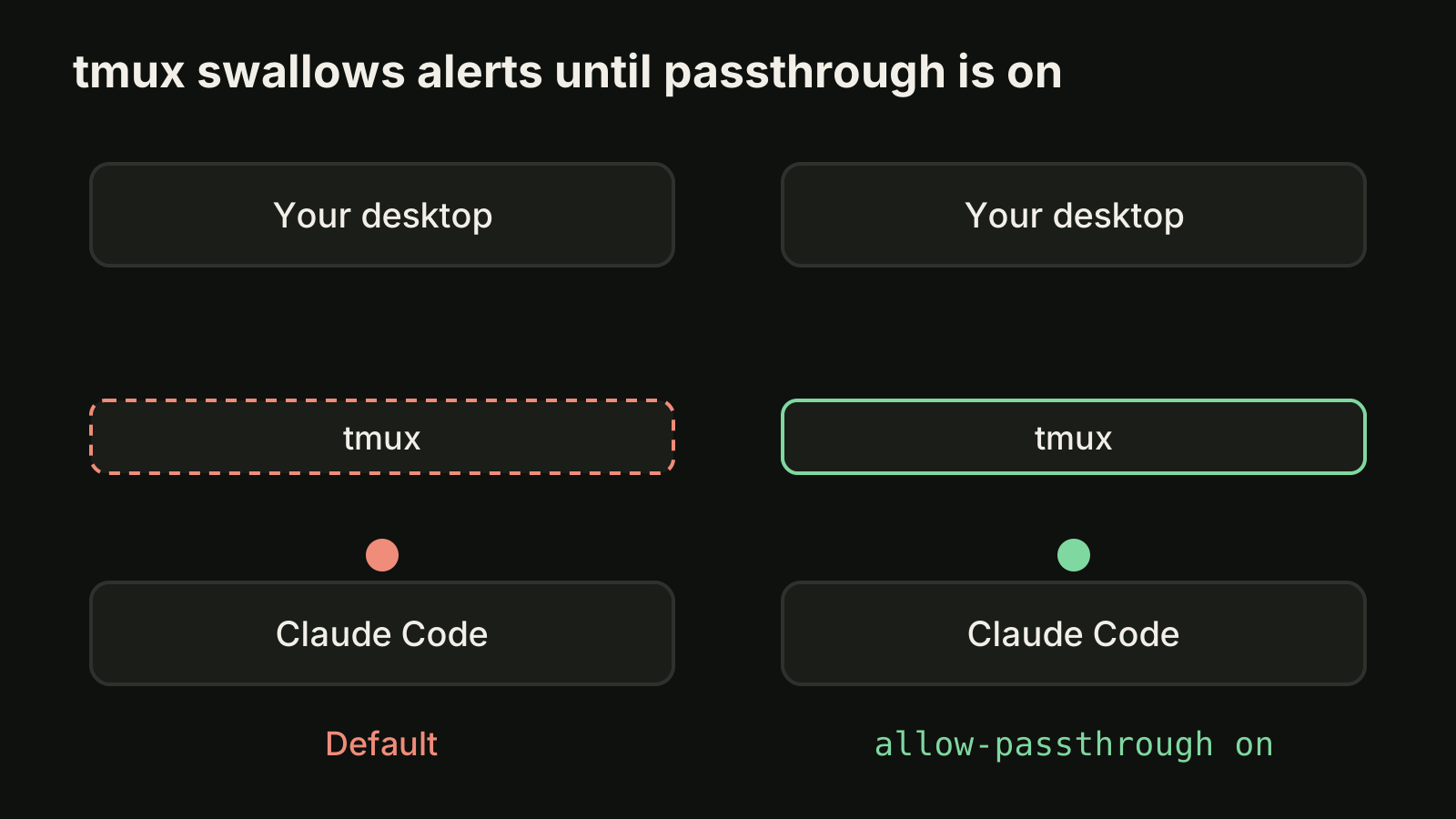
When Claude Code runs inside tmux, desktop notifications never reach the outer terminal by default, because tmux swallows the escape sequence. Add these lines to ~/.tmux.conf:
set -g allow-passthrough on
set -s extended-keys on
set -as terminal-features 'xterm*:extkeys'
Apply them to the running server with tmux source-file ~/.tmux.conf. The allow-passthrough line is the one that lets notifications through; the other two make Shift+Enter insert a newline. If you split work across many tmux panes, our comparison of VibeiDE and a tmux workspace shows another way to keep track of them.
Notifications when you run several sessions
One notification per session works when you run one or two agents. With five sessions across three projects, a stream of identical "Claude Code needs your attention" alerts tells you that something is waiting, not which session or what it was asked to do. A few habits help:
- Put the project in the message. In a project-level hook, write the project name into the notification text so you know where to look.
- Separate blocked from done. Use the
permission_promptandidle_promptmatchers with different sounds, as shown above. - Keep sessions isolated. Give parallel tasks their own git worktrees so a finished task can be reviewed without touching another one. See running multiple Claude Code sessions.
- Review in order. Work through finished tasks one at a time instead of jumping between alerts.
Where VibeiDE fits
VibeiDE is a desktop app that coordinates the Codex, Claude Code and OpenCode CLIs you already installed. Codex and Claude Code run in embedded terminals that show the original CLI interface, and each project has its own task queue, so waiting prompts can be edited or reordered and a task starts when its provider has a free slot. Finished tasks wait in Ready for review, an unread completion state rather than a code approval, so you can see which task finished and what it was asked to do without scanning terminal tabs. Read more about Claude Code in VibeiDE or download the app.
Takeaways
- Claude Code notifies you when a permission prompt waits about six seconds and when it has been idle about 60 seconds after finishing.
- Ghostty, Kitty and iTerm2 get desktop notifications by default; iTerm2 needs "Send escape sequence-generated alerts" turned on.
- In other terminals, set
preferredNotifChannelto"terminal_bell"or add a Notification hook. - Use matchers to give "blocked" and "done" different sounds, and a
Stophook for an instant signal. - Inside tmux, add
set -g allow-passthrough onor notifications never arrive.