You closed the terminal halfway through a Codex task. Or your laptop restarted, or you hit a usage limit and came back the next morning. The work is still in the repository, but the conversation that explains it seems gone, and re-explaining a two-hour task from scratch is the slowest part of using any coding agent.
It is not gone. Codex saves every session, and codex resume brings it back. This guide covers how resume works in the Codex CLI: the session picker, --last and --all, resuming by ID or name, the /resume and /fork commands inside a session, and codex exec resume for scripts. Commands are verified against the Codex CLI command reference and the open source CLI's help text as of October 2026.
Where Codex keeps your sessions
Codex stores its state under CODEX_HOME, which defaults to ~/.codex. According to the environment variables reference, that folder holds config, auth, logs and sessions. Each interactive session is saved there as a transcript, which is what codex resume reads.
Two consequences matter in practice:
- Sessions are local. A session you ran on your desktop is not available on your laptop unless you copy that folder.
- Non-interactive runs with
codex execare saved too, unless you pass--ephemeral, which runs without persisting session files to disk.
Resume from the command line
The basic forms are:
codex resume                 # open the picker
codex resume --last          # continue the most recent session, no picker
codex resume <SESSION_ID>    # continue a specific session by ID or name
codex resume --all           # picker across every directory
Here is what each option does, taken from the CLI's own help text:
| Option | What it does |
|---|---|
| no argument | Opens a picker of recorded sessions |
--last | Continues the most recent session without showing the picker |
SESSION_ID | A session UUID or session name; a UUID takes precedence if it parses |
--all | Shows all sessions, disables the current directory filter and adds a CWD column |
--include-non-interactive | Includes codex exec sessions in the picker and in --last |
The detail that trips most people up is the directory filter. By default the picker shows sessions from the directory you are in. If you start Codex in ~/app and later run codex resume from ~/app/frontend or another repository, your session will not be listed. Run it from the original directory, or add --all.
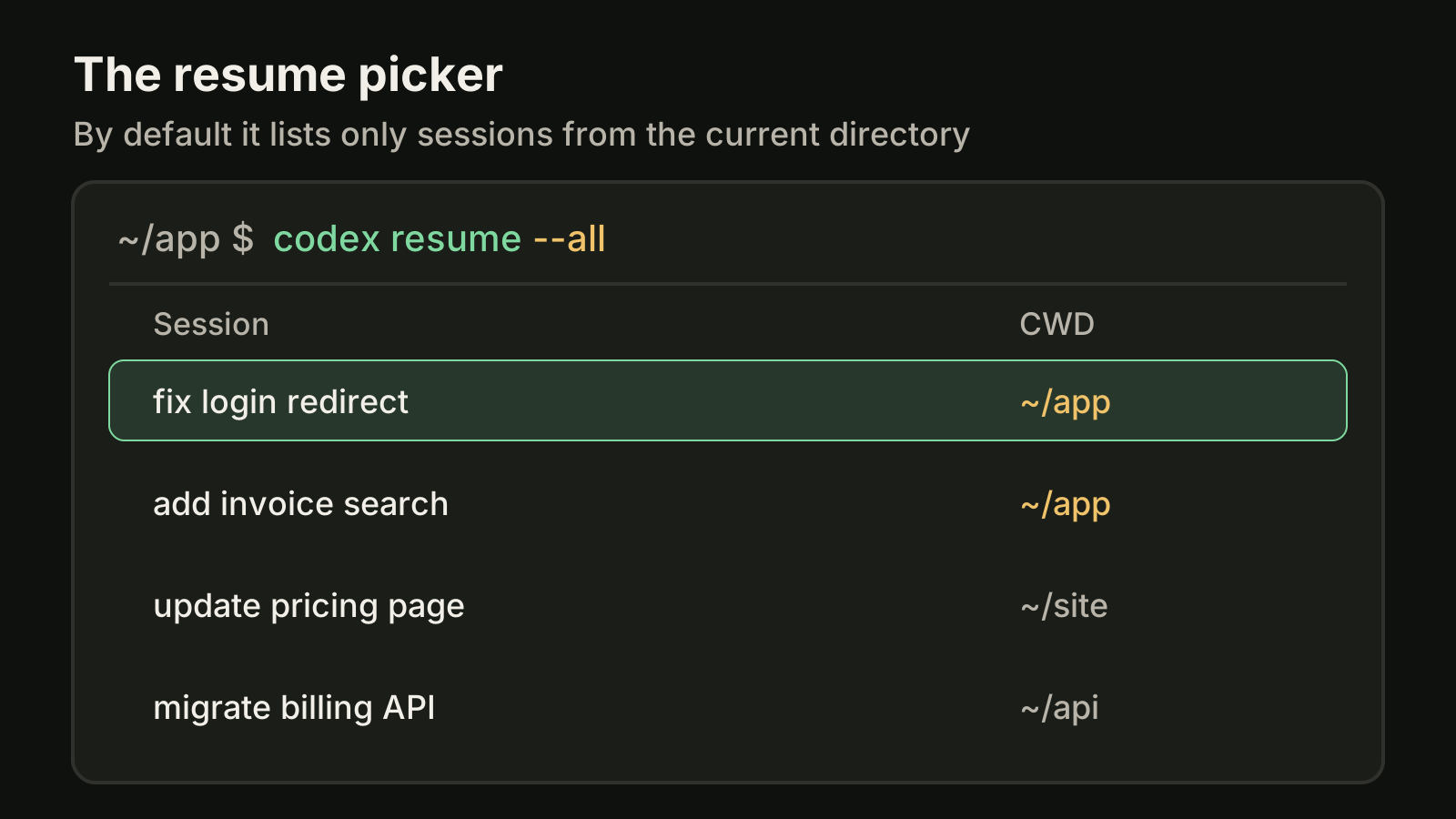
The second detail: --last and the picker skip codex exec runs unless you add --include-non-interactive. If a scripted run is the one you want to open interactively, that flag is the way in.
Resume from inside a session
You do not have to quit to switch conversations. The Codex TUI has slash commands for this, described in the CLI source as:
| Command | Description |
|---|---|
/resume | resume a saved chat |
/new | start a new chat during a conversation |
/fork | fork the current chat |
/rename | rename the current thread |
/status | show current session configuration and token usage |
/compact | summarize conversation to prevent hitting the context limit |
/rename is the one worth building a habit around. A session called fix-login-redirect is easy to find again, and because codex resume accepts a session name as well as an ID, you can return to it directly:
codex resume fix-login-redirectResume or fork?
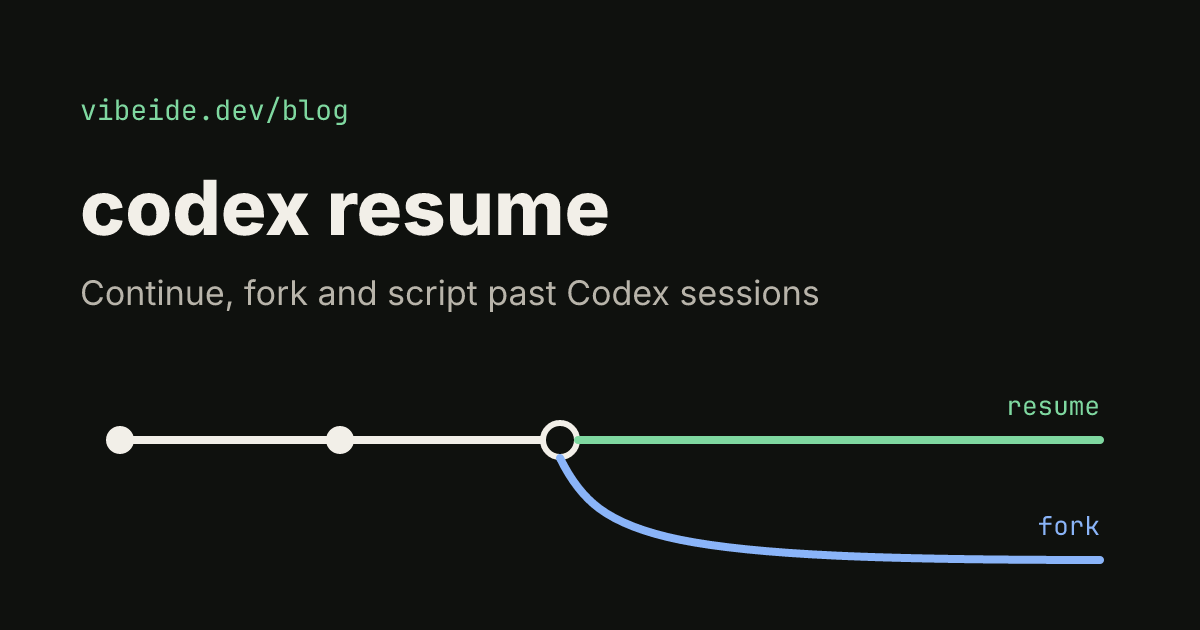
Resuming continues the same session: new messages are added to the same transcript. Forking creates a new chat from a previous session while preserving the original transcript.
codex fork --last            # fork the most recent session
codex fork <SESSION_ID>      # fork a specific session
codex fork --all             # pick from sessions in every directory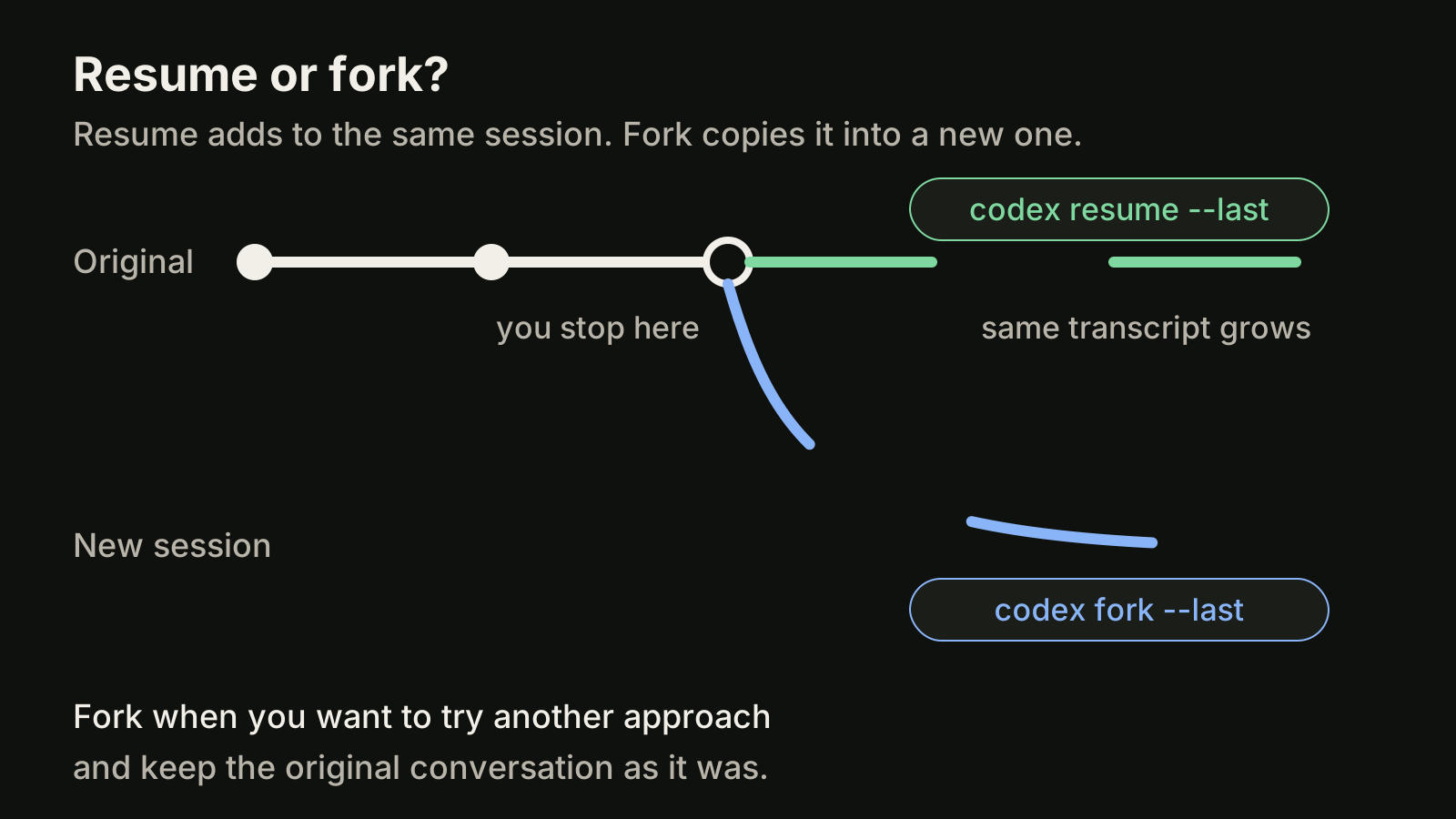
Use resume when you are continuing the same task. Use fork when you want to try a different approach from the same starting point, for example a second fix for a bug, while keeping the first conversation intact to compare against. Inside the TUI, /fork does the same for the chat you are in.
Resume in scripts with codex exec
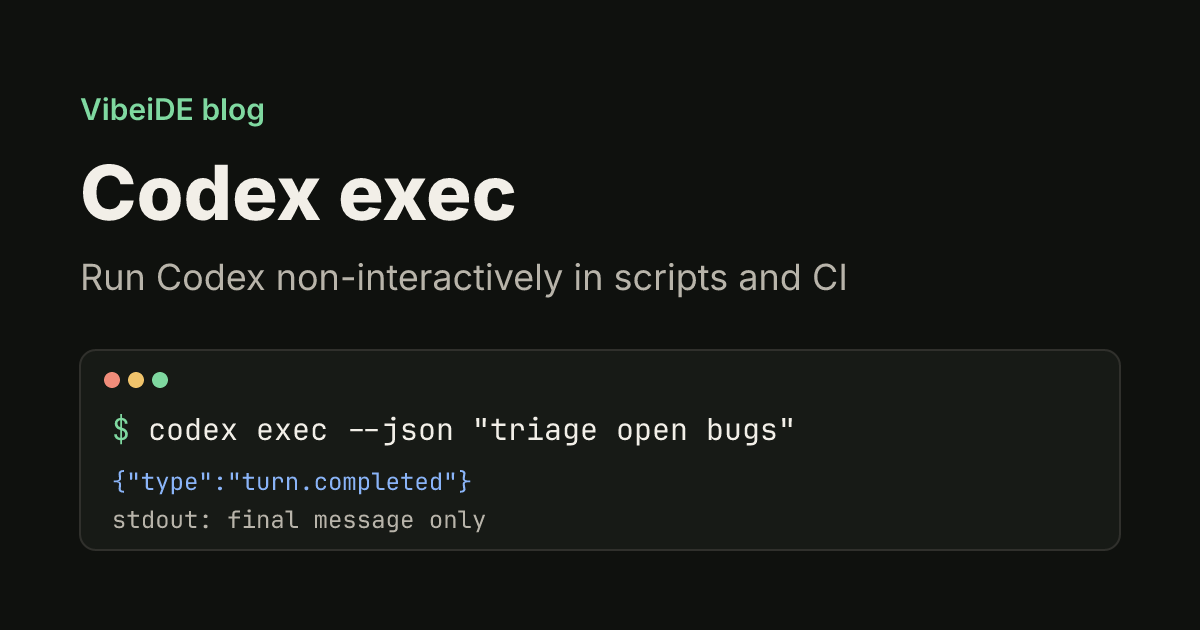
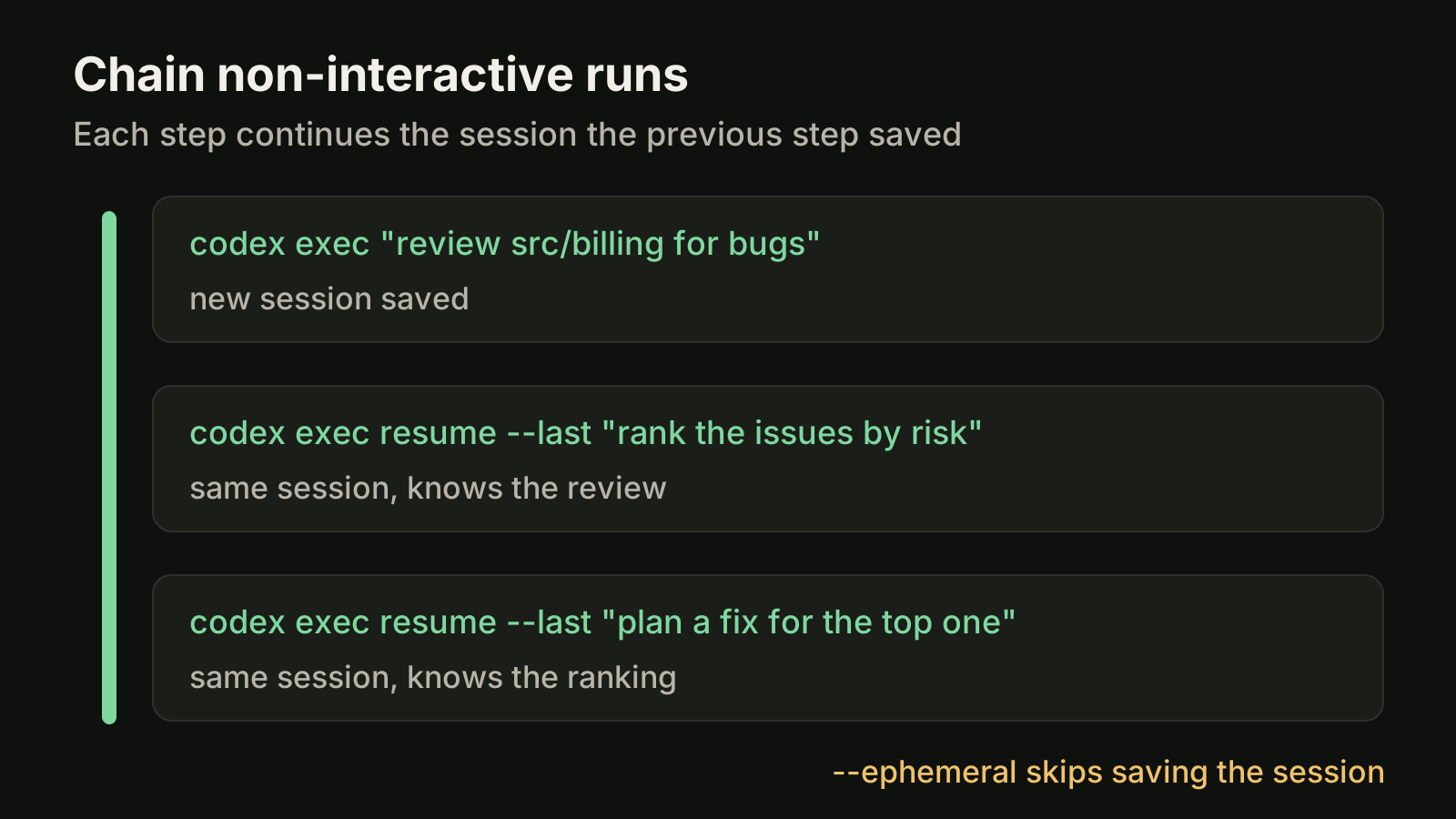
codex exec runs Codex non-interactively, which is how you use it in scripts and CI (our codex exec guide covers its flags). Its resume subcommand lets one run pick up where the previous one stopped. The non-interactive mode documentation shows both forms:
codex exec "review src/billing for bugs"
codex exec resume --last "rank the issues by risk"
codex exec resume <SESSION_ID> "plan a fix for the top one"
The prompt after resume is sent once the session is restored, and - reads it from stdin. Each step knows what the previous steps found, so you can split a long job into small, checkable stages instead of one giant prompt.
Two things to keep in mind for scripts:
- **
--lastis a guess in busy environments.** If several runs happen in the same directory, the most recent one may not be yours. Capture the ID instead: with--json, the output is a JSON Lines stream that includes athread.startedevent with athread_id. Pass that ID tocodex exec resume. - The sandbox still applies. As of October 2026,
codex execruns in a read-only sandbox by default. A step that should edit files needs an explicit sandbox setting; our Codex sandbox guide explains the modes.
When to start fresh instead
Resume is the right move when you are continuing the same task. It is the wrong move when you are starting a different one. Every message you add to a resumed session carries the old conversation with it. Once the session gets long, summarizing it with /compact leaves you with a summary instead of the exact details from early on.
A simple rule works well: one task, one session. Resume to finish or follow up on that task. Start a new session, or fork, when the request changes. The same idea applies to Claude Code, which we cover in our guide to the Claude Code context window.
A resume routine for several projects
If you run Codex in more than one repository, a small routine keeps resume predictable:
- Start each task from the repository root. The picker filters by directory, so a consistent starting point means the session shows up where you expect it.
- Name the session right away. Run
/renamewith the task name, such asinvoice-search, before the conversation gets long. - Check usage before a follow-up.
/statusshows the session configuration and token usage. If the session is already heavy, compact it or fork before adding a new request. - Resume by name after any interruption.
codex resume invoice-searchis faster and safer than scrolling a picker or trusting--last. - Close the loop. When the task is reviewed and merged, leave the session alone and start the next task in a new one.
If you stopped because you hit a usage limit, nothing is lost: the session is saved, and you can resume it once your allowance resets. Our page on Codex rate limits covers planning work around that allowance.
Troubleshooting
- The picker is empty or missing a session. You are probably in a different directory. Try
codex resume --all. - Your
codex execrun is not listed. Add--include-non-interactive. - The session is from another machine. Sessions live in
~/.codex(or yourCODEX_HOME) on the machine that ran them. - A scripted run left nothing to resume. Check whether it used
--ephemeral. - Your config still names a retired model. As of October 2026, GPT-5.5 retires from Codex with ChatGPT sign-in on October 14, 2026. Update the
modelsetting before you continue; see Codex models.
Where VibeiDE fits
VibeiDE is a desktop app that coordinates the Codex, Claude Code and OpenCode CLIs you already installed, with your own provider accounts. Codex runs in an embedded terminal that shows the original CLI interface. Each task keeps its saved provider conversation, so a follow-up can continue that conversation instead of re-explaining the context, and when Codex reaches a usage limit, the terminal explains that you can continue in the same terminal after the reset. Each project has its own task queue, and finished tasks wait in Ready for review. See the Codex page, or start with installing the Codex CLI and setting up AGENTS.md.
Takeaways
- Codex saves sessions under
~/.codexby default;codex resumeopens a picker,--lastskips it, and a session ID or name opens one directly. - The picker only shows the current directory. Use
--allwhen a session seems missing, and--include-non-interactiveforcodex execruns. - Name sessions with
/renameso you can resume them by name later. - Resume to continue a task, fork to try another approach without touching the original.
- In scripts, chain steps with
codex exec resume, and prefer thethread_idfrom--jsonoutput over--last.