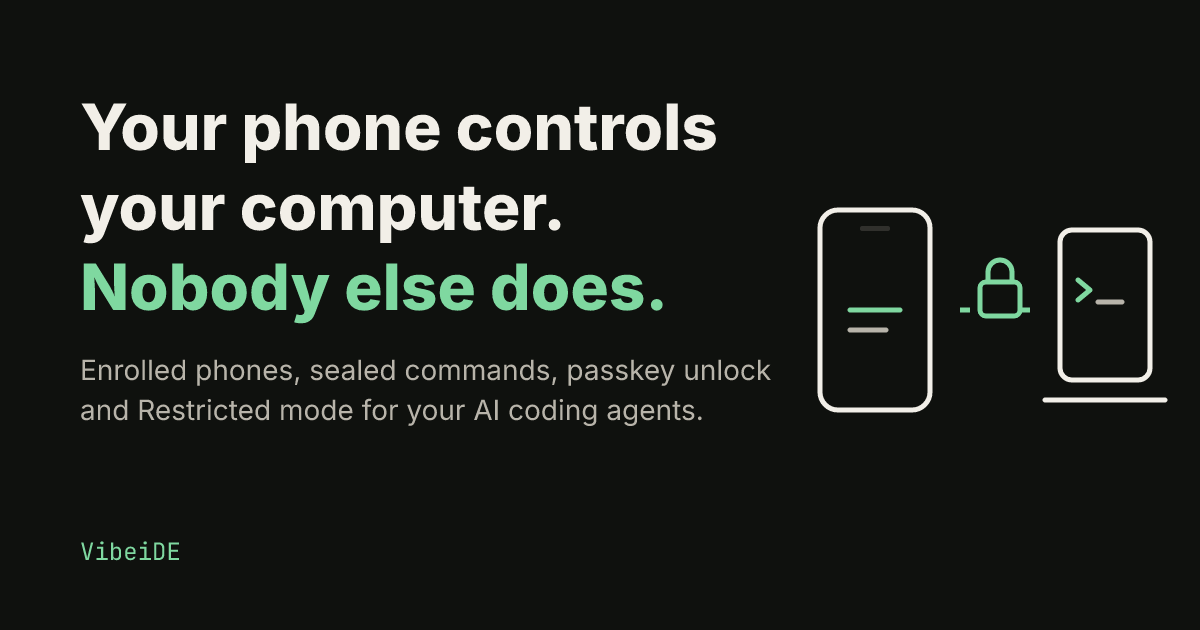
Short answer: to control Claude Code or Codex from your phone with VibeiDE, you enroll the phone from Mobile control in the desktop app (scan a QR code, compare a six-digit code, confirm on the computer) and unlock it with a passkey. Every command is end-to-end encrypted and signed, your computer checks it before anything runs, and the default Restricted profile keeps phone work inside the project folder.
One workspace for all your coding agents.Download VibeiDE

Sending a prompt from your phone and watching an AI coding agent start work on your computer is one of the most useful things VibeiDE does. It is also one of the most sensitive. A message that reaches your computer can start Codex or Claude Code inside a real project, with your files and your accounts. So the question we kept asking was simple: who, exactly, can make your computer do something?
With VibeiDE 0.7, available now for macOS, Windows and Linux, the answer is: a phone that your computer enrolled itself, unlocked by you, within limits you set on the computer. Not our service, not someone who learns your password, and not a phone you never approved. This post explains how that works, what you control, and what you need to do once to switch over.
Why phone control needs its own security model
Most apps protect remote access with an account: if you are signed in, you are trusted. For a tool that runs coding agents on your machine, that is not enough. An account can be phished, a session cookie can leak, and any service in the middle is one more thing that has to stay perfect forever.
We wanted a model where a problem in one of those places does not turn into control over your computer. That led to three principles:
- The computer decides. Your computer keeps its own list of the phones it trusts and checks every command itself.
- The service only carries messages. Our relay passes sealed messages between your phone and your computer. It cannot read them, change them or create new ones that your computer would accept.
- Every command is limited. Even a trusted phone works inside the permissions you chose on the computer, and the riskiest actions still wait for you at the desk.
Your computer decides who it obeys
Connecting a phone is now a short ceremony that happens between the two devices you own.
- On the computer, open Mobile control and show the connection QR code.
- Scan it with your phone. The code carries the computer's identity, so the phone knows exactly which computer it is talking to.
- The phone creates its own keys and a passkey that only it can use.
- Both screens show the same six-digit code. Compare them, then confirm on the computer.
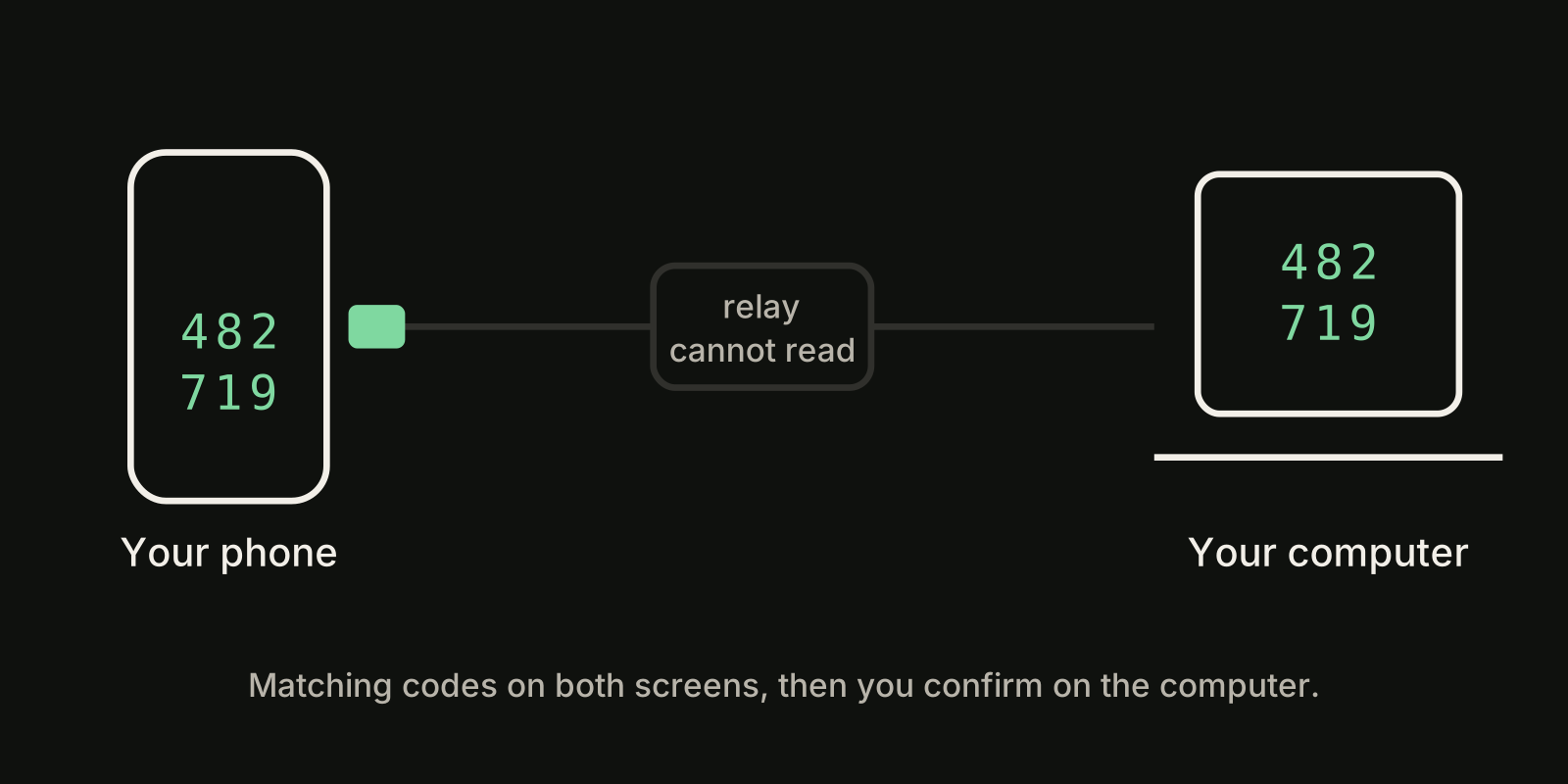
From that moment your computer accepts commands only from that phone. The six digits matter: if anything in between tried to swap in different keys, the codes would not match and you would not confirm. Approving a computer for phone control also requires a sign-in that passed two-factor authentication, so a stolen password alone is not enough to start the process.
You can connect more than one phone. Each one is enrolled separately and gets its own permissions.
Everything between phone and computer is sealed
Once a phone is enrolled, every command it sends is encrypted for your computer and signed by the phone. The computer checks the signature, refuses anything it has already seen, and refuses anything that has expired. Replies travel back the same way, sealed so that only your phone can open them.
That covers your prompts, follow-ups, answers to an agent's questions and the results that come back. Live terminal and screen views use an encrypted connection between the two devices as well. Our service still sees what it needs to deliver messages: which computer a message is for, when it was sent and roughly how large it is. It does not see what is inside.
If a message fails to arrive, the phone does not quietly send it again. It asks the computer what actually happened, so a prompt cannot run twice because of a flaky connection.
Unlock with a passkey
Before a phone can do anything, you unlock it with the passkey it created during enrollment. On an iPhone that is Face ID or Touch ID; on other phones it is the device's own screen lock. The computer issues a fresh challenge for each unlock, so an old unlock cannot be replayed.
An unlock does not last forever. It ends after a period without use and after a maximum time even if you keep using it, and you can end it sooner from the phone with Lock now. On the computer, Lock all phones ends every unlock at once. Removing a phone from the computer, or choosing Forget computer on the phone, revokes it completely.
You can read more about how passkeys work in MDN's Web Authentication guide.
Restricted by default
Phone work is limited by a remote profile that you choose on the computer. The default is Restricted:
- Codex can change files only inside the project folder, with network access turned off.
- Claude Code can read and edit files in the project but cannot run shell commands or browse the web.
- Permission prompts and anything that would widen access wait for you at the computer instead of being approved from the phone.
- A phone cannot steer a full-access session you started at the desk.
If you want your phone to have the same power as the desk, you can switch the profile to Full on the computer. That is a deliberate choice you make where you sit, never from the phone. Restricted mode still changes files in your project, so review what an agent did before you run or ship it. Our guides on Claude Code permissions and the Codex sandbox explain the underlying modes in more detail.
You can see and revoke everything
Mobile control on the computer now shows:
- every phone you enrolled, by name;
- what each phone may do: view tasks, start or continue work, answer questions, watch the live terminal or screen;
- an activity list of the requests each phone sent, and whether the computer accepted or refused them. Prompt text is never stored there.
Your computer also notifies you when a phone unlocks it and when requests are refused, so unexpected activity does not go unnoticed. If you mainly want to know when an agent finishes, our guide to Claude Code notifications covers the desktop side.
Your account is harder to misuse
Phone control is only part of the picture. We also tightened the account itself:
- Two-factor authentication is required to approve a computer for phone control. Set it up at Account security with any authenticator app; the setup page shows a QR code you can scan.
- Security emails tell you about new sign-ins, a computer approved for your phone, and changes to your second factor. They never contain links you need to click.
- No third-party scripts run on pages where you are signed in, so an outside script cannot act on your account.
Desktop updates are signed
A secure connection does not help if the app itself could be swapped. VibeiDE now checks every downloaded update against a signed release record before it installs, using keys that never live on our servers. If the downloaded file does not match exactly, the update is refused and nothing is installed. Desktop builds are still signed with our Apple and Windows publisher identities as before.
What this does not cover
No security model protects against everything, and we would rather be clear about the edges:
- The phone app runs in your phone's browser, so keep your phone itself locked and up to date.
- Software you choose to install on your computer, including the AI CLIs, runs with your permissions. Install them from their official sources.
- Restricted mode limits what agents can do, not what they write into your project. Review changes before you run them.
How to switch over
Phones connected to an older version of VibeiDE need to be connected once more after you update:
- Update VibeiDE on your computer from the download page or the in-app update.
- If you have not yet, set up two-factor authentication under Account security.
- Open Mobile control on the computer, show the QR code and scan it with your phone.
- Create the passkey on the phone, compare the six digits and confirm on the computer.
That is it. Your computer remembers the phone, and you unlock it with your face or fingerprint when you need it. If you are new to VibeiDE, the docs walk through the rest of the setup.
Phone control FAQ
Can I control Claude Code or Codex from my phone?
Yes. With VibeiDE an enrolled phone can start or continue tasks, answer an agent's questions and watch the live terminal or screen, while Claude Code or Codex keeps running on your own computer.
Is phone control end-to-end encrypted?
Yes. Commands are encrypted for your computer and signed by the phone, and replies are sealed for the phone. The relay only sees which computer a message is for, when it was sent and roughly how large it is.
What can a phone not do?
In the default Restricted profile, Claude Code cannot run shell commands or browse the web, Codex has no network access, and permission prompts wait for you at the computer. Switching to Full is only possible on the computer.
What if I lose my phone?
Remove it from Mobile control on the computer, or use Lock all phones to end every unlock at once. A removed phone is revoked completely.
Found a problem?
If you believe you have found a security issue, please tell us privately at info@vibeide.dev before sharing it anywhere else. Our disclosure details are also published in our security.txt file at vibeide.dev/.well-known/security.txt. How we handle your data is described in our privacy policy.