This week I spent most of my time using VibeiDE rather than adding to it, and that changed what I worked on. I fixed the things that slowed me down, polished the parts I reach for every hour, and finished a few features that had been half done for too long.
Stop juggling terminal tabs.VibeiDE puts every agent in one Grid you can actually read.Try freeHere are ten things worth trying, in the order I would show them to a friend sitting next to me. Every screenshot below is the real app, filled with a demo project instead of my private work. The one photo is my own desk.
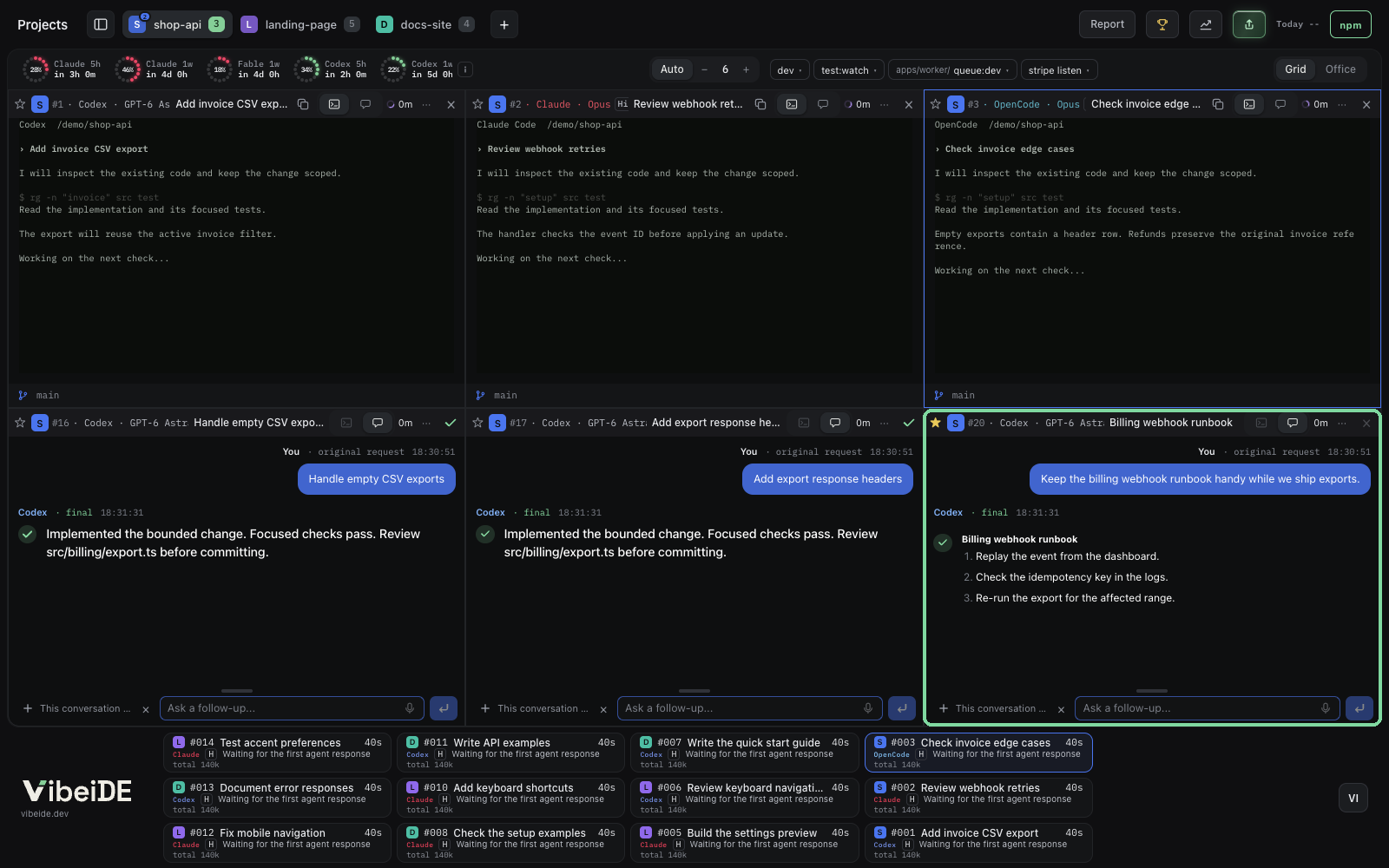
Start a fresh session for every task
The habit that improved my results the most is simple: one task, one new session. When a single long conversation carries five unrelated requests, the agent starts mixing context, skipping steps and "remembering" decisions you never made. A new session per task keeps every request focused.
You do not lose anything by doing this. Each task keeps its saved provider conversation, so when you need to come back to it next week, you open the task and write a follow-up. Resume session continues the same conversation with all of its context, instead of making you explain everything again. If you want the details, the guide on resuming a Claude Code conversation walks through it.
Bookmark the tasks you keep coming back to
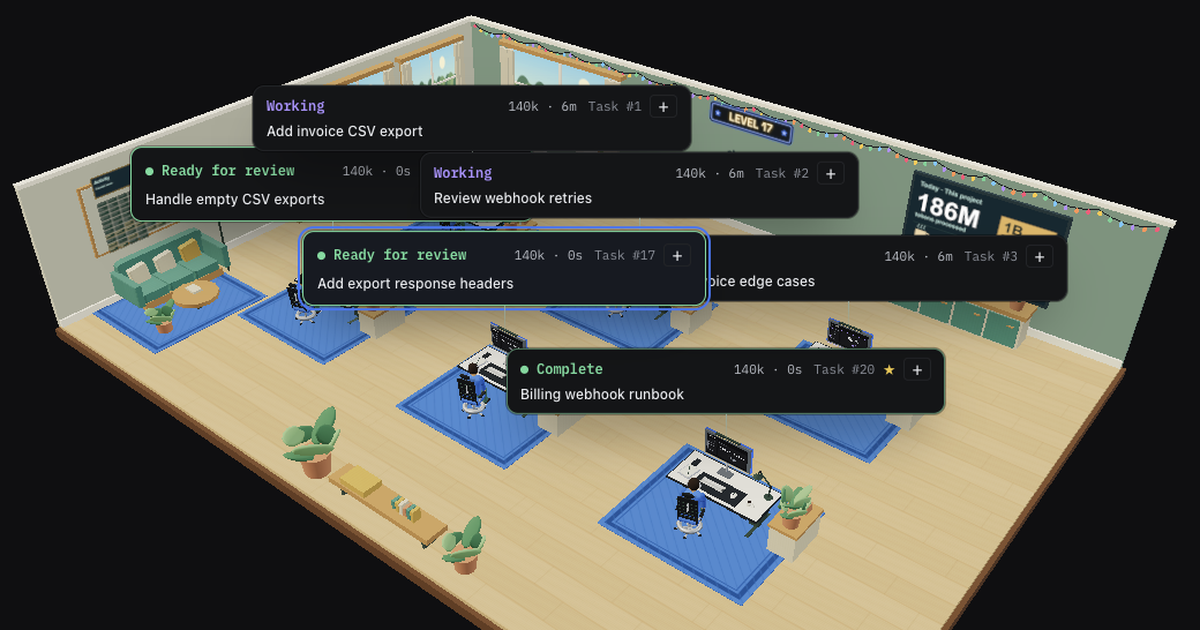
Some tasks are worth keeping in sight: a runbook, a long investigation, a reference answer you check every day. Star a task and it now stays pinned in the Office and in the grid, not only in the list. It does not disappear when you tidy the workspace, and VibeiDE asks you to remove the bookmark before you can close it, so it never vanishes by accident.
Control everything from your phone
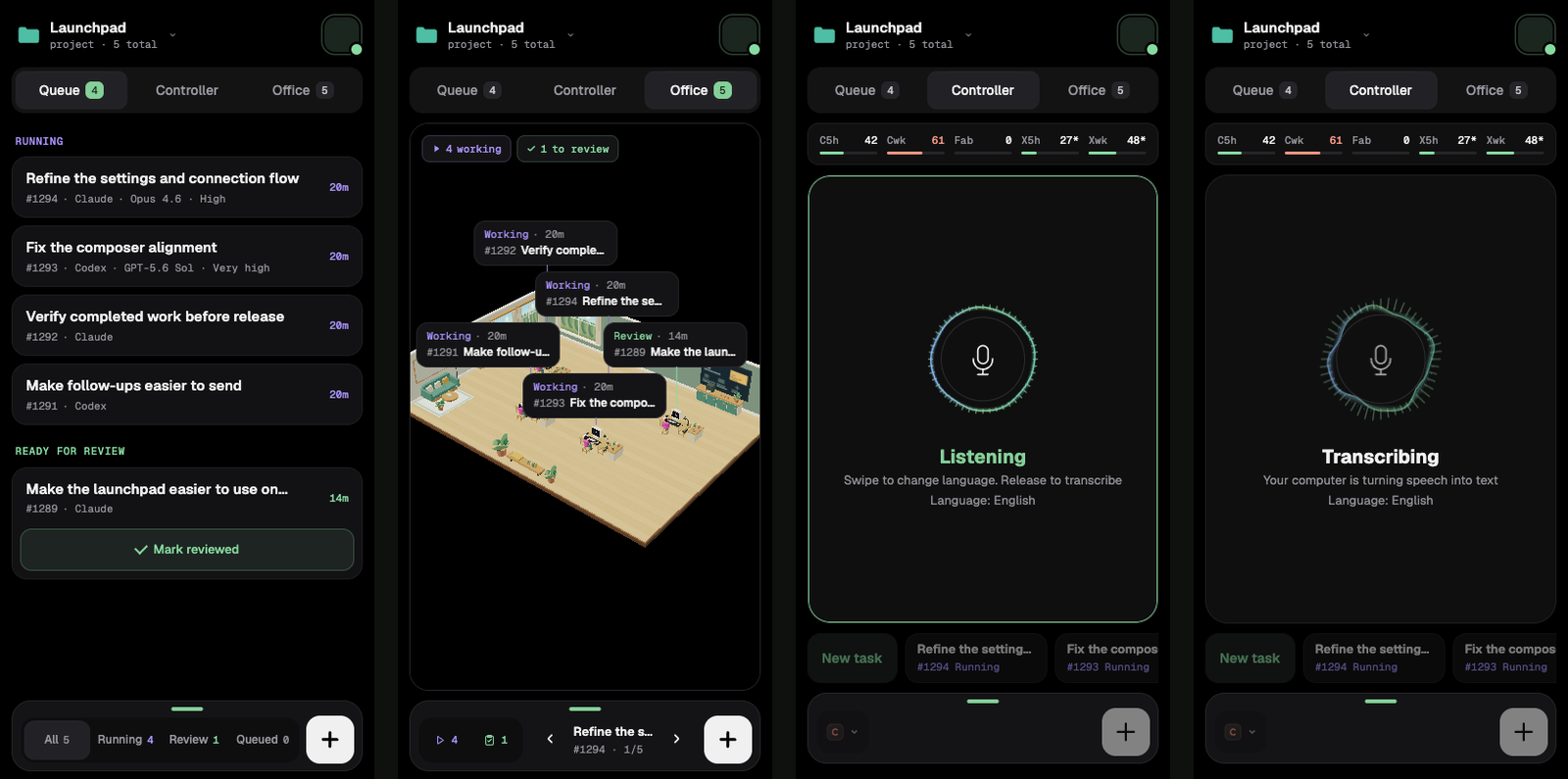
Mobile control got a lot of love this week and it is now genuinely good. Pair your phone once and you get three views:
- Queue: running work, finished tasks waiting for review, and one tap to mark them reviewed.
- Controller: hold to talk, pick the project and task, and send a new task or a follow-up.
- Office: the same office as on your desktop, with every agent at its desk.
It is the perfect companion for the moments away from the desk: check what finished, answer a question an agent is waiting on, or queue the next task while you make coffee. Setup takes a minute, see Mobile control. How the connection between your phone and your computer is protected is explained in how VibeiDE keeps phone control secure.
Talk instead of type, privately
Voice control works on the desktop and from the phone. The important part is where it runs: transcription uses NVIDIA Parakeet, a small speech model that runs locally on your own computer. Your recordings never go to a speech service. When you talk into your phone, the phone records and your computer does the transcription.
For such a small model it is remarkably good. In English it is close to perfect. It also understands Slovak and many other European languages and detects the language on its own; my Slovak works, just not quite as well as my English. Voice input is off until you turn it on, and the model downloads once (about 670 MB). I also plan to add an optional server option for people who prefer it.
The Office view is better than it looks
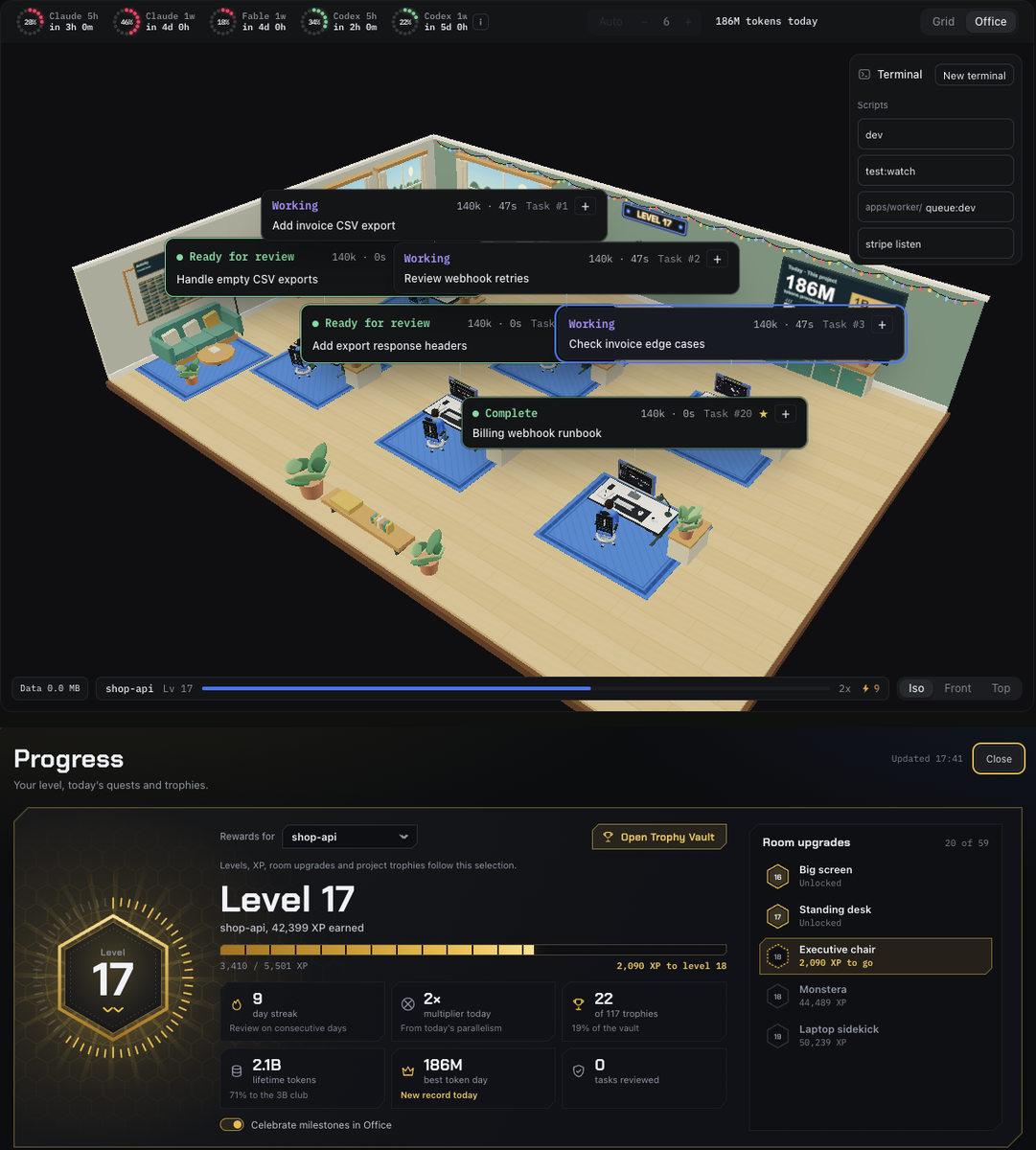
I will be honest: I originally built VibeiDE around the grid, and the Office started as a fun extra. Then I used it for a week and switched to it completely. Each agent sits at its own desk with a small card above its head, so a glance tells you who is working, who needs review and who is done. Click an agent and its terminal or chat opens right there. It is easier to read than a wall of terminals, especially with many tasks running.
If you prefer the grid, it got attention too: panes now use as much of the screen as possible, so you see more of every session at once.
Click the board: your project has a level
This one is just for fun. In the Office, click the board on the back wall and you get your project's level: XP, daily quests, room upgrades and trophies. The more you work, the more the room grows; furniture and decorations unlock as you level up, and there are achievements for things like long working days, parallel runs and finishing streaks. It changes nothing about how tasks run. It just makes a long day of shipping a little more fun.
The global monitor bar, top or bottom
If you work on several projects in parallel, the monitor bar is the feature I cannot live without. It shows running and finished tasks from every project in one strip, so you see the whole picture without opening each project.
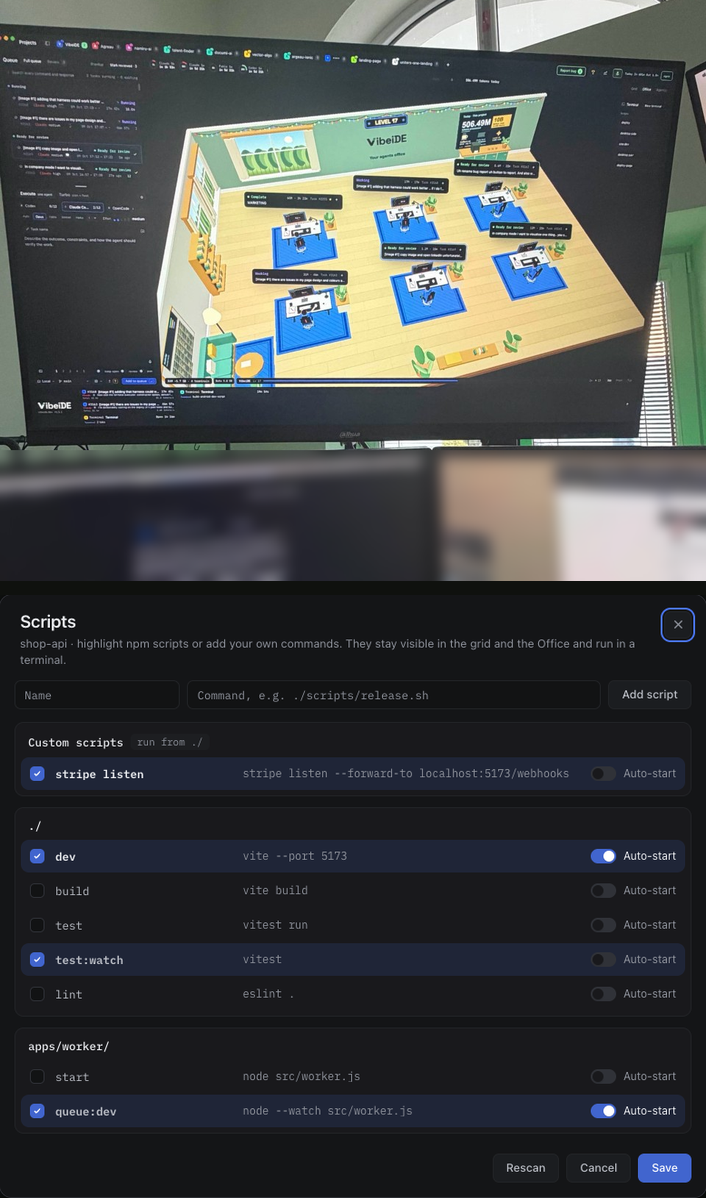
You can place it at the top or the bottom of the window, whichever matches your monitors. My setup, in the photo below: VibeiDE has its own monitor, mounted above my other screens. Because that monitor sits on top, I moved the monitor bar down to its bottom edge, right above the screens I work on. Every running task across all my projects is one small glance up, and I honestly cannot praise that bottom strip enough.
Project scripts, started for you
Every project now has Scripts. VibeiDE reads the npm scripts from your package.json files (including nested packages), and you can add your own commands too, such as a Stripe listener or a Docker command. Highlighted scripts appear as buttons in the grid and in the Office, and one click runs them in a terminal.
Mark a script as Auto-start and it starts together with VibeiDE, even when that project is not selected. My dev servers are now simply running when I open the app.
Plan council: two agents plan, you decide
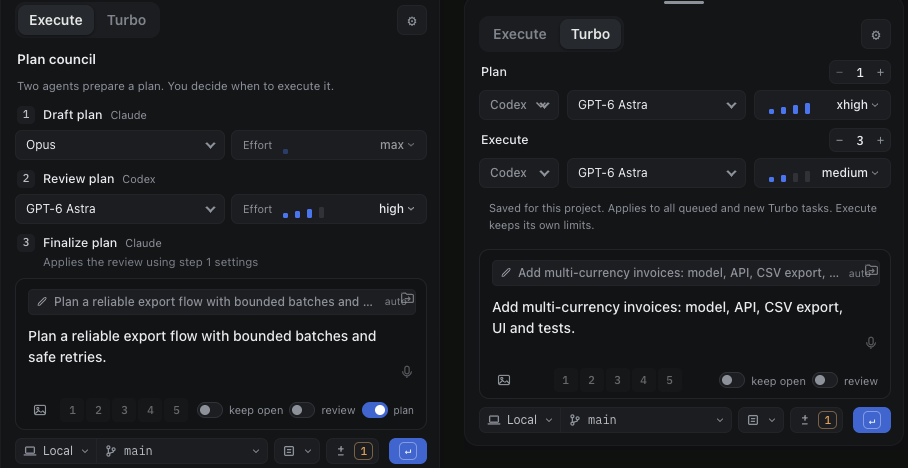
For bigger changes, turn on plan in the composer. One agent drafts the plan, a second agent from the other provider reviews it critically, and the first one finalizes it using that review. You read the result and decide when (and whether) to execute it. Two different models catch different mistakes, and a reviewed plan saves a lot of rework. More in Plan council.
Turbo: smart planner, fast executors
Turbo is the second tab in the composer, next to Execute. A stronger model plans the whole job first: it reads the project and writes a complete, machine readable plan. Then a fresh execution session receives that plan and does the work, so the executor can be a faster model at lower effort. You choose the planning and execution models separately, and each project sets how many planners and executors may run at once (one and three by default).
It works well for large requests that are easy to describe but long to implement.
Try it
All of this is in the current release. If you already use VibeiDE, update and try one thing at a time; the Office and the monitor bar are the best places to start. If you are new, download VibeiDE and connect the Codex, Claude Code or OpenCode CLI you already use. Your provider accounts and limits stay your own.
I would love to hear what you think, especially about mobile and voice. Send it with Report in the app.