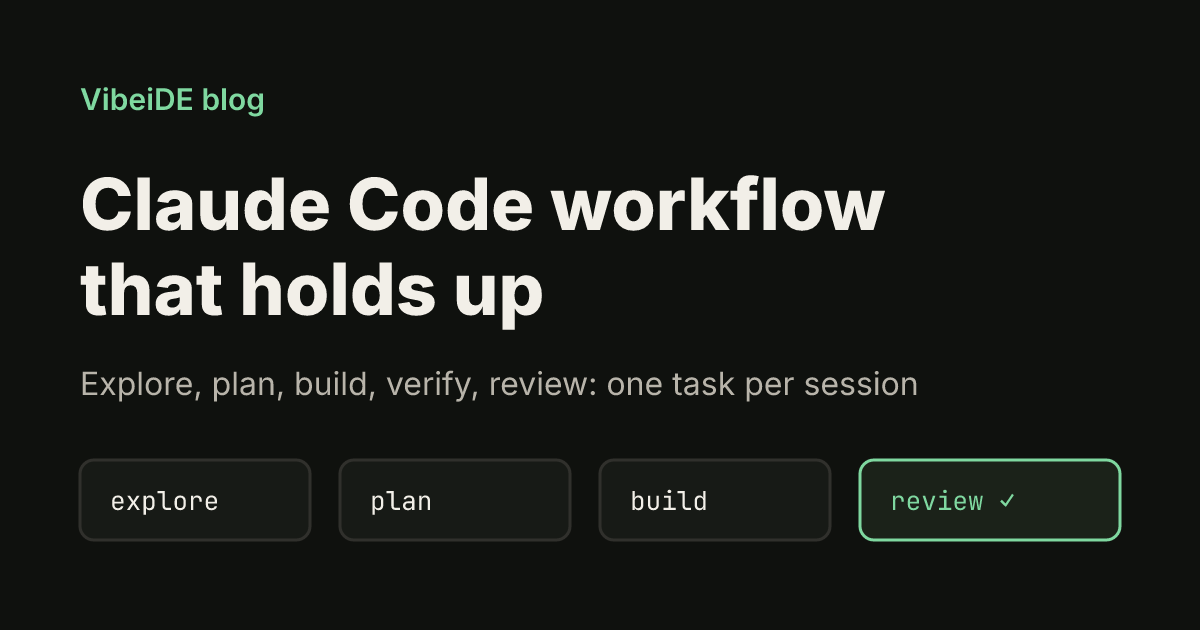
A good Claude Code workflow is less about clever prompts and more about a loop you repeat for every task: explore, plan, build against a check, review, then start the next task in a clean context. This guide walks through that loop with the exact commands, as of October 2026, plus the habits that keep long days with several agents from turning into tab hell.
The loop below follows Anthropic's own best practices for Claude Code, which start from one constraint: the context window fills up fast, and Claude gets worse as it fills. Almost every step here exists to protect that context.
The Claude Code workflow in one picture
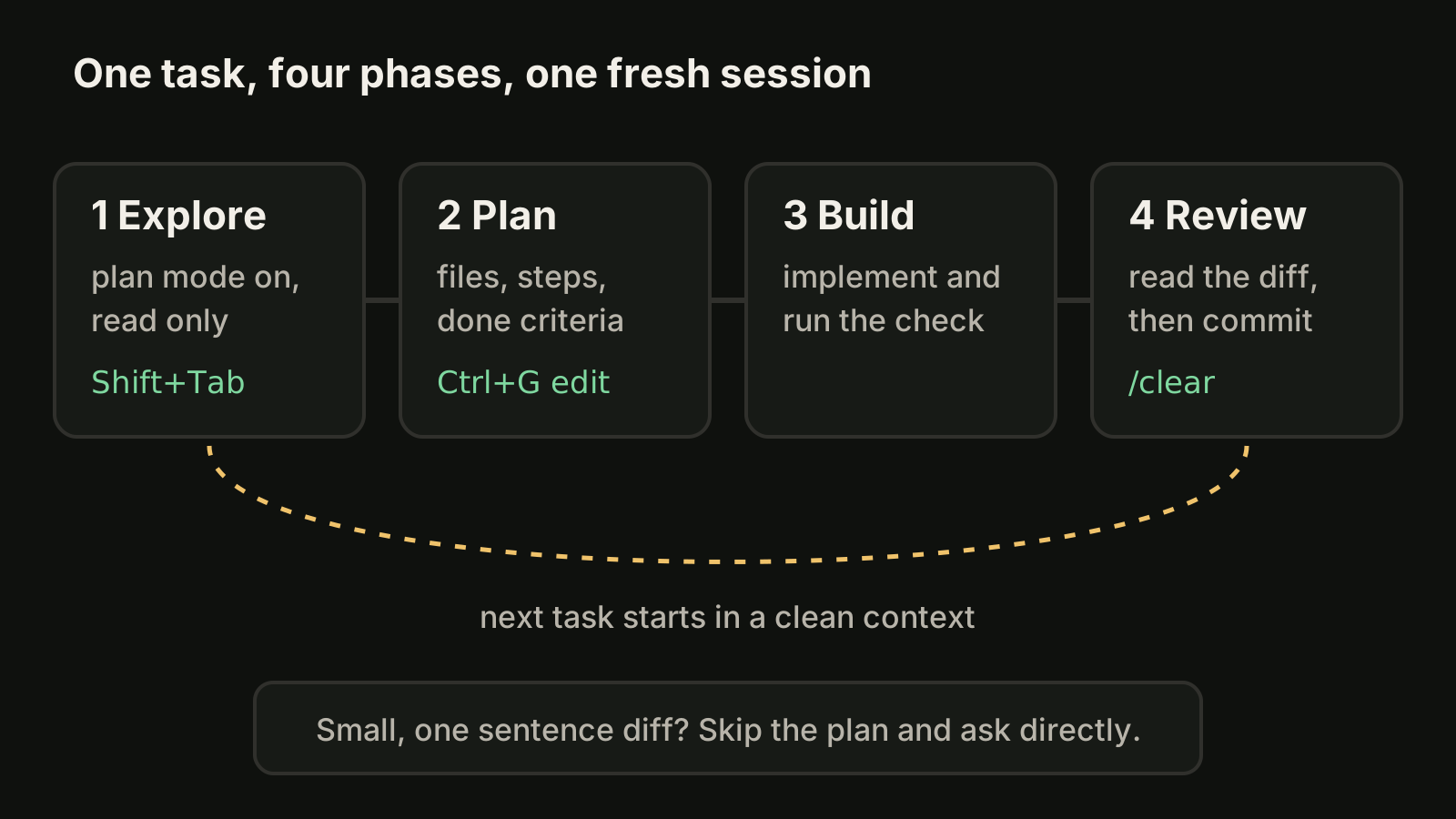
| Phase | What you do | Command or shortcut |
|---|---|---|
| Explore | Let Claude read code without editing | Shift+Tab until plan mode is on, or claude --permission-mode plan |
| Plan | Agree files, steps and a definition of done | Ask for a plan; Ctrl+G opens it in your editor |
| Build | Implement and run a check Claude can read | Leave plan mode, ask it to run tests |
| Review | Read the diff and the evidence, then commit | Ask Claude to commit, or commit yourself |
| Reset | Start the next task with an empty context | /clear |
For a one sentence change (a typo, a log line, a rename) skip the plan and ask directly. Planning pays off when you are unsure of the approach, the change touches several files, or you do not know the code well.
Step 1: Explore in plan mode
Press Shift+Tab until the status bar shows plan mode, or start the session with claude --permission-mode plan. In plan mode Claude reads files and answers questions without changing anything.
Point it at the code that matters instead of asking it to "look around":
read src/auth and explain how sessions and login work.
also check how we load secrets from environment variables.
Use @ to reference files directly, paste error output, or pipe data in with cat error.log | claude -p "explain this error". If the investigation would read many files, ask Claude to "use subagents to investigate" so the reading happens in a separate context and only a summary comes back. Our guide to Claude Code subagents covers when that helps.
Step 2: Make the plan specific enough to check
Ask for a plan that names the files, the order of changes and how you will know it worked. Then press Ctrl+G to open the plan in your editor and fix it before any code changes. A plan you edited is a plan you understood.
A useful plan answers four questions:
- Which files change, and which must not?
- What is out of scope for this task?
- Which test, build or script proves it works?
- What does "done" look like in one sentence?
For a bigger feature, let Claude interview you first and write the answers to a spec file, then start a fresh session to implement it. The new session gets clean context and a written spec. More detail is in our Claude Code plan mode guide.
Step 3: Build against a check Claude can run
Claude stops when the work looks done. Without a check it can run, "looks done" is the only signal, and you become the test suite. Give it something that passes or fails:
implement the OAuth callback from the plan. write tests for the
callback handler, run the test suite and fix any failures.
show me the test output when you are done.
You can make the check stricter as the task grows:
- In the prompt: ask Claude to run the check and iterate until it passes.
- For the whole session: set it as a
/goalcondition, which is re-evaluated after every turn. - As a hard gate: a Stop hook runs your script and blocks the turn from ending until it passes.
While Claude works, correct it early. Esc stops it mid-action with context intact. Esc twice, or /rewind, opens the rewind menu to restore an earlier conversation or code state. Checkpoints only cover edits made through Claude's file tools, not changes made by shell commands, so keep using git.
If you correct the same mistake twice and it still goes wrong, the context is full of failed attempts. Run /clear and start again with a better first prompt that includes what you learned.
Step 4: Keep one task per session
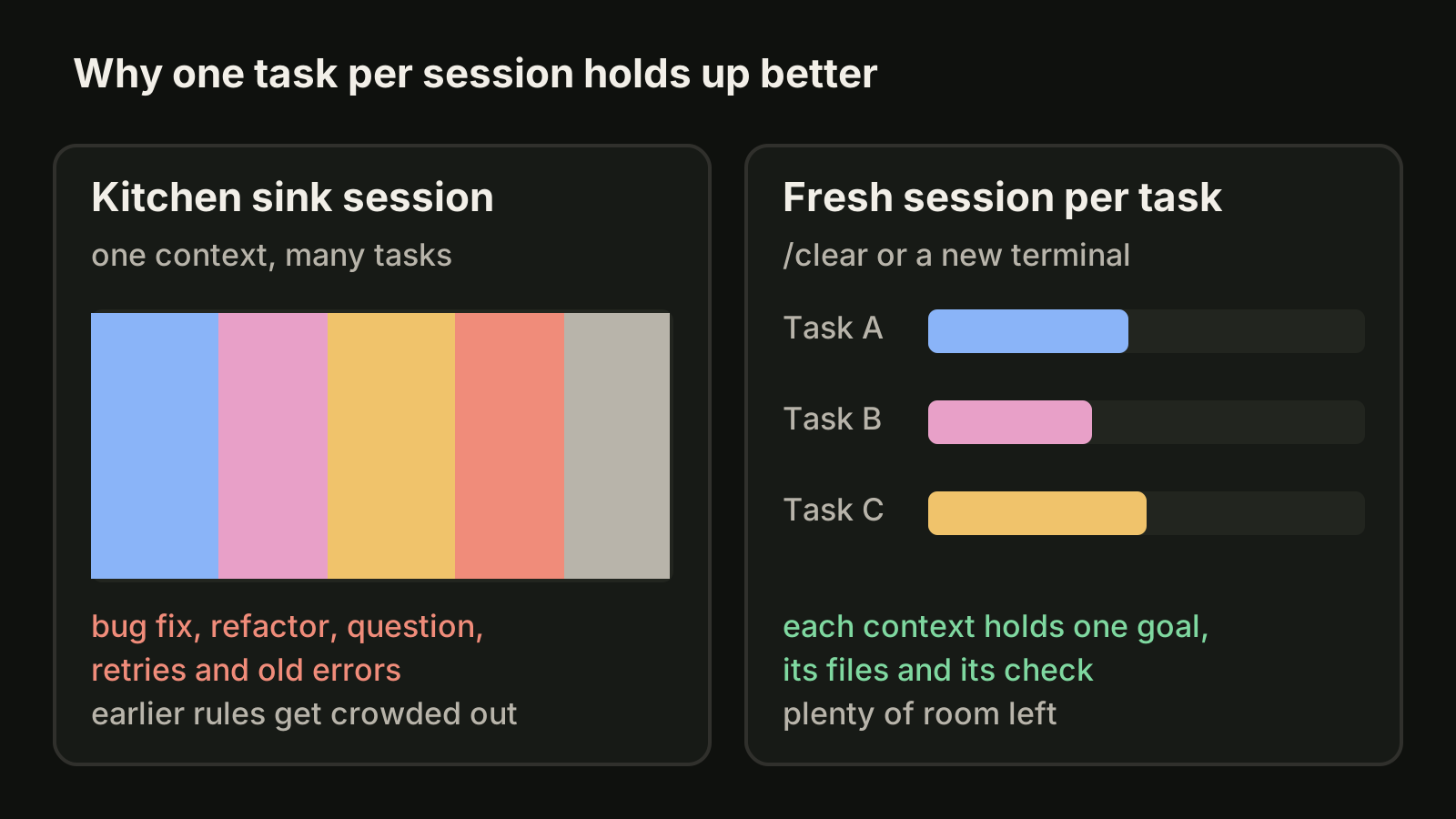
The most common failure is the kitchen sink session: a bug fix, then an unrelated question, then a refactor, then back to the bug. Every file read and every failed attempt stays in context, and earlier instructions get crowded out. This is a common reason an agent seems to quietly skip a request late in a long session.
The fix is boring and reliable:
- Run
/clearbetween unrelated tasks. The previous conversation is saved and you can return with/resume. - Use
/compact Focus on the API changeswhen you need to keep going but want a focused summary. Our post on the Claude Code context window explains what survives compaction. - Name sessions you will come back to with
/rename oauth-migrationorclaude -n oauth-migration, then return withclaude --resume oauth-migration.claude --continuereopens the most recent conversation in the current directory. - Put rules that apply to every task in CLAUDE.md, and keep it short. Run
/initto start one, then prune it. See CLAUDE.md best practices.
Step 5: Run parallel sessions in separate worktrees
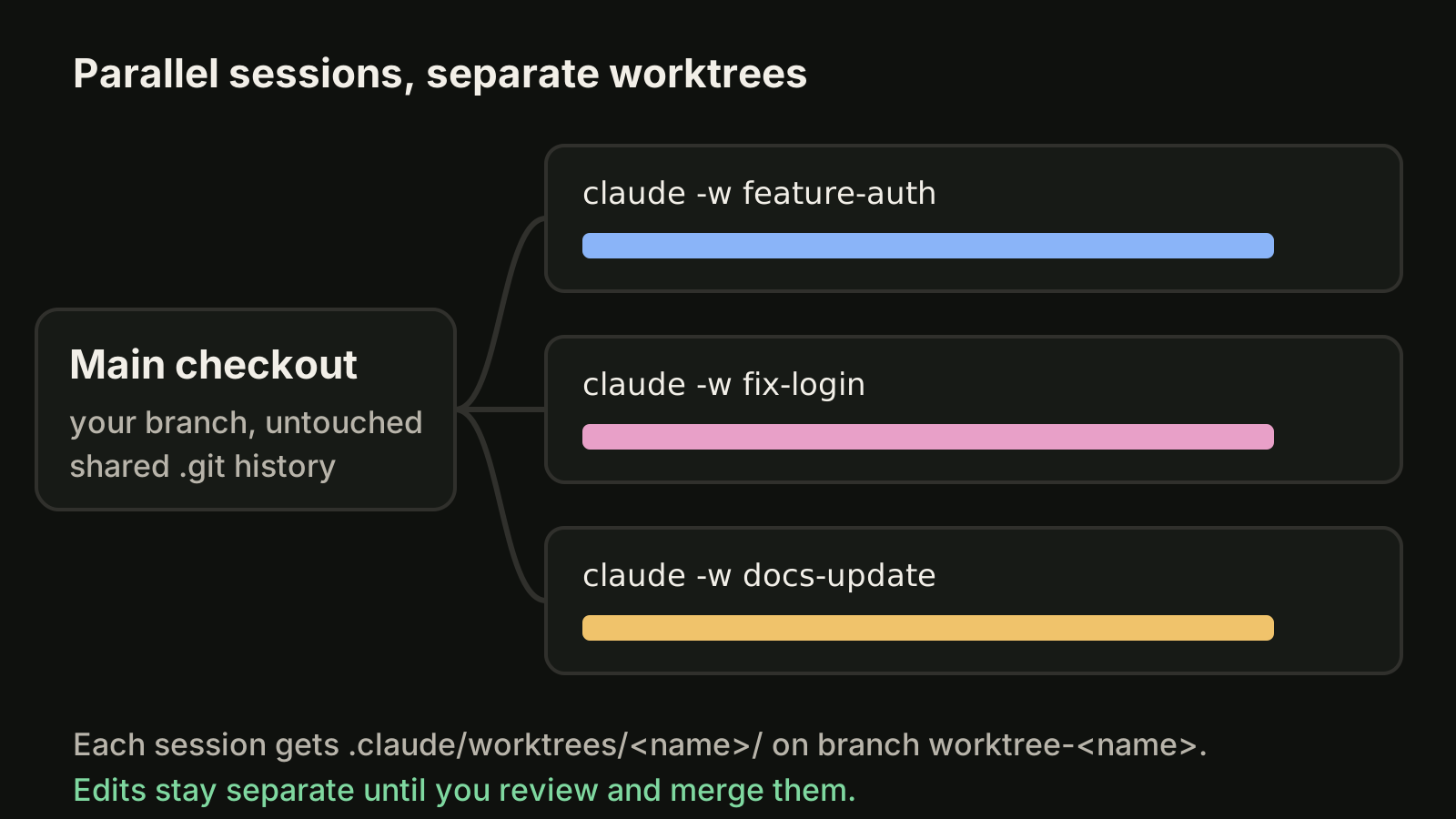
Once one loop works, you can run several at once. The safe way is one git worktree per session, so two agents never edit the same checkout:
claude --worktree feature-auth
claude --worktree fix-login
Each command, run in its own terminal, creates a worktree under .claude/worktrees/<name>/ on a new branch named worktree-<name>. Add .claude/worktrees/ to .gitignore, and list files such as .env in a .worktreeinclude file so they are copied into each new worktree. The official worktree guide covers cleanup and resuming.
Parallel sessions also make review better. A writer and reviewer pattern works well: one session implements, a second session with fresh context reviews the diff against the plan, and the first session fixes what the review found. We walk through the trade-offs in running multiple Claude Code sessions. To hear when a long task finishes instead of watching tabs, set up Claude Code notifications.
Step 6: Review before you call it done
The final step is the one that gets skipped when you juggle several agents. Before a task counts as done, read three things:
- The diff. Every changed file, including ones you did not expect.
- The evidence. Test output, the command that ran and what it returned, or a screenshot.
- The scope. Nothing outside the plan changed.
For a second opinion, the bundled /code-review skill reviews the current diff for bugs in a fresh subagent. Tell any reviewer to flag only gaps that affect correctness or the stated requirements, otherwise it will invent work. Our checklist for reviewing AI generated code goes deeper.
A daily routine that scales
Put together, a day with Claude Code looks like this:
| Time | Habit |
|---|---|
| Start of day | Write today's tasks as one line each with a done criterion |
| Each task | Fresh session or /clear, plan mode for anything non-trivial |
| While it runs | Work on the next plan instead of watching output |
| When it finishes | Read diff and evidence, then commit or send back |
| Parallel work | One worktree per session, merge only after review |
| End of day | Name sessions you will resume tomorrow |
If you run Claude Code next to Codex or OpenCode across several projects, VibeiDE is a desktop app that coordinates the CLIs you already installed: each project has its own task queue, waiting prompts can be edited or reordered, and the "New worktree per task" branch mode gives each task its own Git worktree and branch. Finished tasks wait in Ready for review, which is an unread completion state rather than a code approval, so nothing counts as done until you have looked at it. See how it works for Claude Code or in the AI agent task queue overview.
Takeaways
- Explore and plan in plan mode (
Shift+Tab), and edit the plan withCtrl+Gbefore code changes. - Give Claude a check it can run, and ask for evidence, not a claim of success.
- One task per session:
/clearbetween tasks,/compactwith instructions when you must continue. - Use
claude --worktree <name>for parallel sessions so edits never share a checkout. - Review the diff, the evidence and the scope before anything counts as done.