OpenCode runs on Windows, but the first attempt often goes wrong: the one-line install command from the docs fails in PowerShell, or the install finishes and Windows says opencode is not recognized. This guide covers the routes that work as of October 2026, based on the official OpenCode install docs: WSL (the route the docs recommend), native package managers, and the standalone binary for OpenCode 2. It then fixes the errors people hit most often.
 Your agents, in one office.Every task gets a desk and a live status card. Click a desk to focus it.Try VibeiDE free
 How do I install OpenCode on Windows with PowerShell?
In PowerShell, install OpenCode with one Windows package manager: scoop install opencode, choco install opencode or npm install -g opencode-ai. Then open a new PowerShell window and run opencode --version. The one-line curl ... | bash script from the docs does not work in PowerShell; it is meant for WSL, macOS and Linux.
# pick ONE of these
scoop install opencode
choco install opencode
npm install -g opencode-ai

# then, in a new PowerShell window
opencode --version
As of October 2026 the docs list no PowerShell install script, so a package manager is the native route. The rest of this guide explains when WSL is the better choice and how to fix the usual errors.
Pick a route first
There are three sensible ways to run OpenCode on a Windows machine. They all end with the same opencode command, but they behave differently.
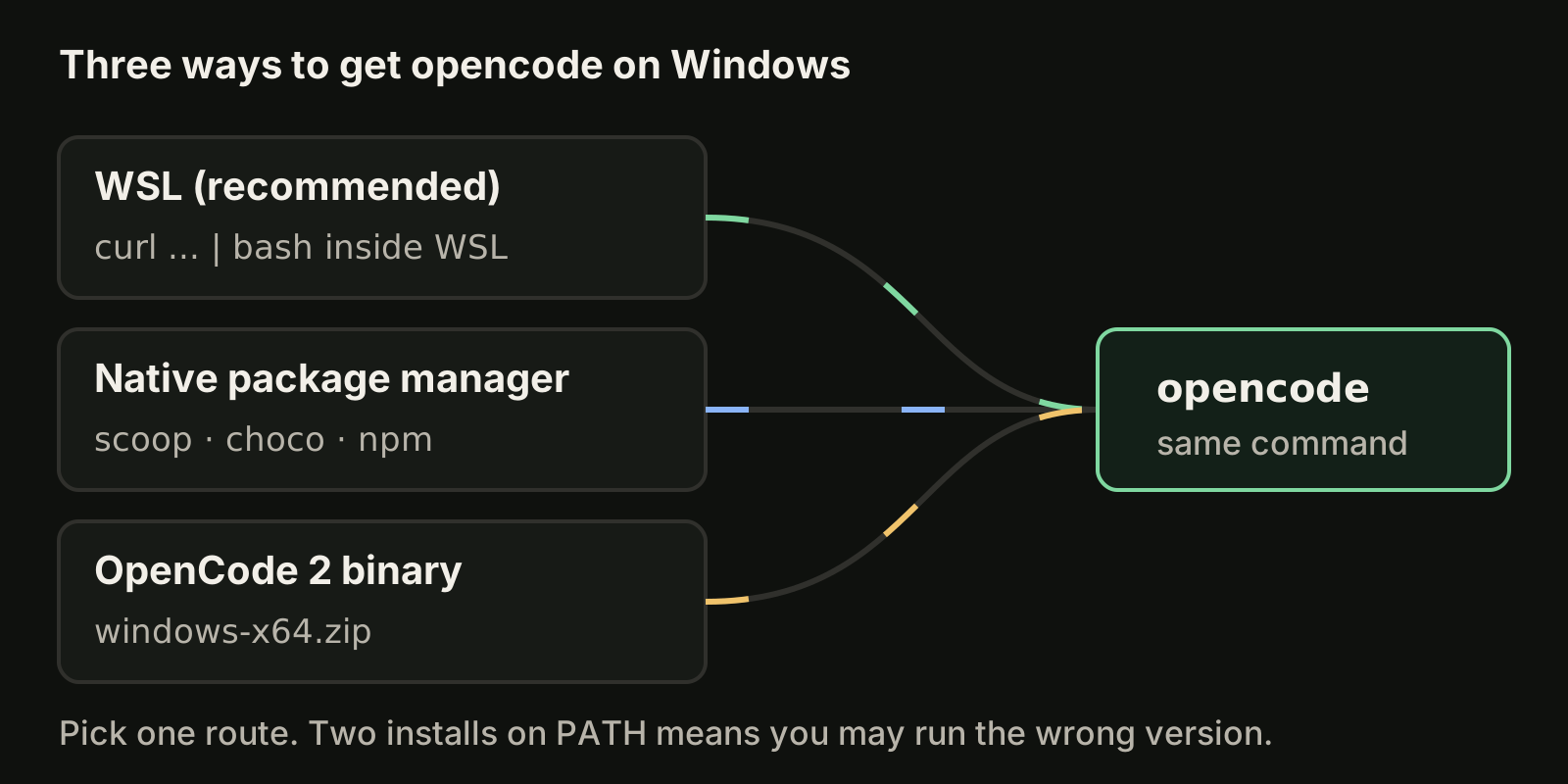
| Route | Command | Best for |
|---|---|---|
| WSL (recommended) | curl -fsSL https://opencode.ai/install | bash inside WSL | Best file system performance and full terminal support |
| Scoop | scoop install opencode | Native Windows, OpenCode 1 |
| Chocolatey | choco install opencode | Native Windows, OpenCode 1 |
| npm | npm install -g opencode-ai | Machines that already have Node.js |
| mise | mise use -g github:anomalyco/opencode | People who manage tools with mise |
| Docker | docker run -it --rm ghcr.io/anomalyco/opencode | A throwaway, isolated run |
| OpenCode 2 binary | Download the Windows zip from the V2 docs | Trying OpenCode 2 natively |
The docs say plainly that WSL gives better performance and full compatibility with OpenCode's features, so start there unless you have a reason not to. They also note that installing on Windows with Bun is still in progress, so skip Bun for now.
Install OpenCode in WSL
If WSL is not set up yet, install it with Microsoft's guide and open your Linux distribution's terminal. Everything below runs inside that WSL shell, not in PowerShell.
curl -fsSL https://opencode.ai/install | bash
opencode --version
Then open a project. Your Windows drives are mounted under /mnt/, so C: is /mnt/c/:
cd /mnt/c/Users/YourName/projects/my-app
opencode
That works, but the OpenCode WSL guide recommends a faster setup: clone or copy the repository into the WSL file system, for example under ~/code/, and run OpenCode there. File access across the /mnt/c boundary is slower than inside WSL, and a coding agent reads a lot of files.
mkdir -p ~/code && cd ~/code
git clone https://github.com/your-org/my-app.git
cd my-app
opencode
Inside the terminal UI, run /connect to add a model provider, then /init so OpenCode writes an AGENTS.md file for the project. Our OpenCode install guide walks through those first steps and the CLI commands in detail. If you want to start without paying for a model, see OpenCode free models and OpenRouter free models.
Note that OpenCode's config and sessions live inside WSL, in ~/.local/share/opencode/. A native Windows install and a WSL install do not share sessions or credentials, so pick one and stay with it.
Install OpenCode natively on Windows
If you would rather stay in PowerShell or Windows Terminal, OpenCode 1 is available through the usual Windows package managers:
scoop install opencode
choco install opencode
npm install -g opencode-ai
Use one of them, not all three. Each one installs its own copy of the opencode binary, and two copies on your path is a reliable way to end up running a version you did not expect. Precompiled OpenCode 1 binaries are also published on the project's GitHub releases page if you prefer to manage the file yourself.
OpenCode 2 on Windows
OpenCode 2 is a separate release line. As of October 2026 its docs offer Windows standalone binaries (x64, x64 baseline for older CPUs, and ARM64) and state that Windows package managers are not supported for OpenCode 2. Two rules from the migration guide matter here:
- OpenCode 1 and OpenCode 2 both use the
opencodecommand and cannot be installed side by side under the default name. - Remove a package-managed OpenCode 1 install before you install OpenCode 2, otherwise the old binary may still win on your path.
So on Windows, choose: OpenCode 1 through Scoop, Chocolatey or npm, or OpenCode 2 from the standalone zip. OpenCode 2 reads your existing config from the same locations as OpenCode 1, so you do not have to rewrite it to try the new version.
Why the curl install command fails in PowerShell
The most common Windows error starts with the install line from the docs:
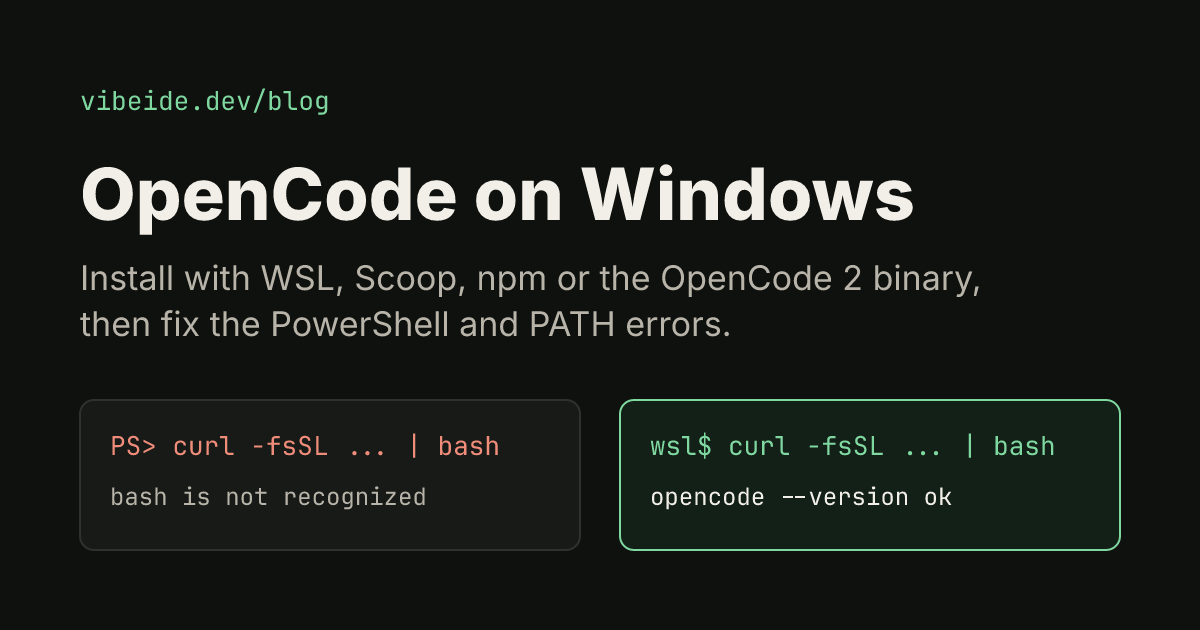
curl -fsSL https://opencode.ai/install | bashIn Windows PowerShell 5.1, curl is an alias for Invoke-WebRequest, a different command with different parameters. It does not understand -fsSL, so you get "A parameter cannot be found that matches parameter name 'fsSL'". Even if the download worked, Windows has no bash to pipe it into, which produces "bash is not recognized".
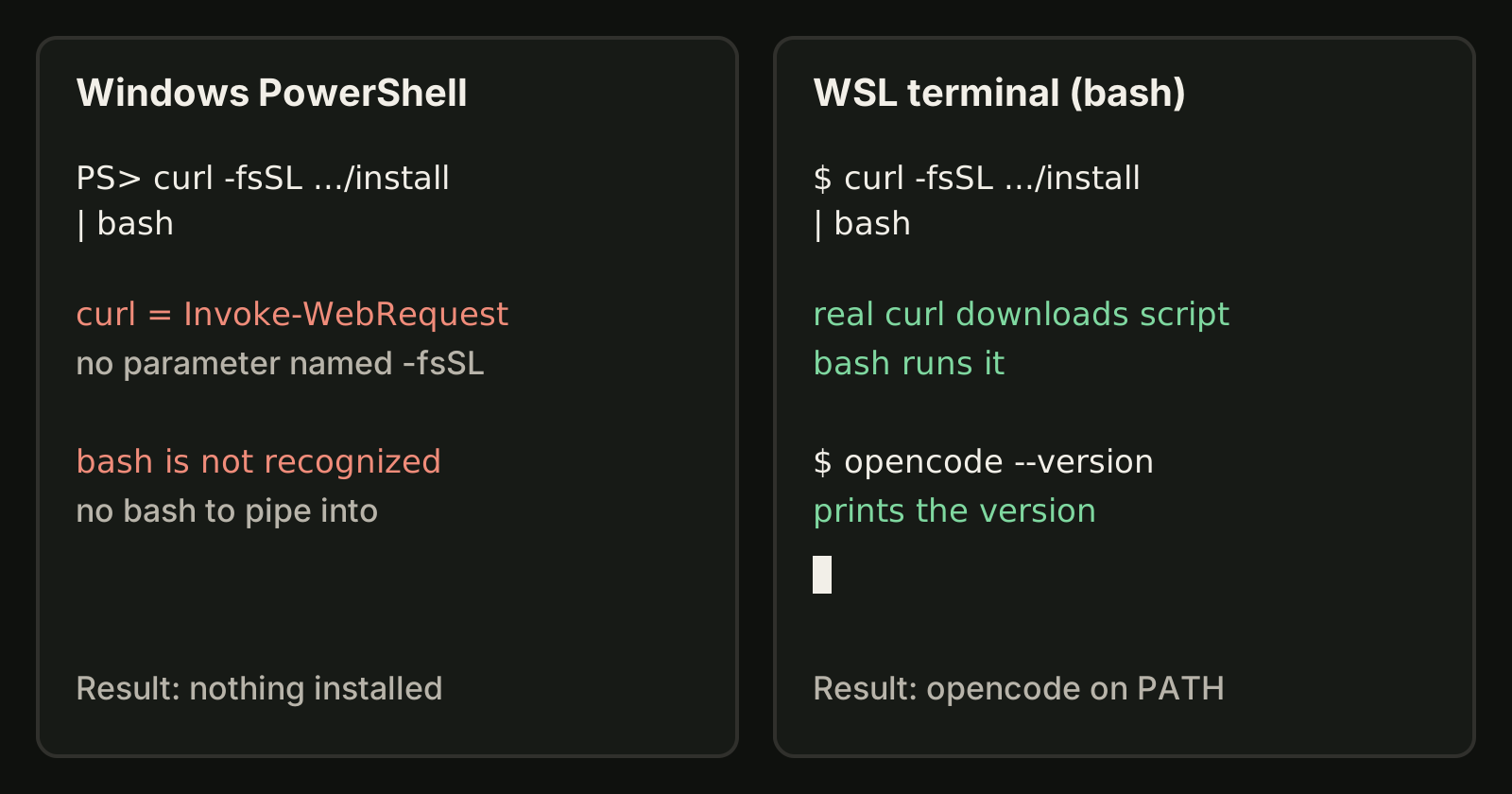
The fix is not to translate the command. The script is for macOS, Linux and WSL. Either run it inside a WSL terminal, or use one of the native routes above.
Fix "opencode is not recognized"
If the install reported success but opencode is still not found, check these in order:
- Open a new terminal. Installers change
PATH, and an already open window keeps the old value. - Find out where the binary is. Run
where.exe opencodein PowerShell. No result means the folder is not onPATH. - For npm installs, check the npm prefix. Run
npm prefix -g. On Windows, npm puts global commands directly in that folder (by default%AppData%\npm), and that folder must be on your userPATH. - Look for duplicates. If
where.exe opencodelists two paths, uninstall the one you do not use. - Check you are in the right shell. A WSL install is only visible inside WSL, and a Scoop install is only visible in Windows shells.
Use the desktop app or web UI with WSL
You can keep OpenCode running in WSL and still use a Windows window to drive it. The WSL guide describes two ways. If you have not installed the desktop app yet, our OpenCode desktop app guide lists the Windows installers and the other GUI options.
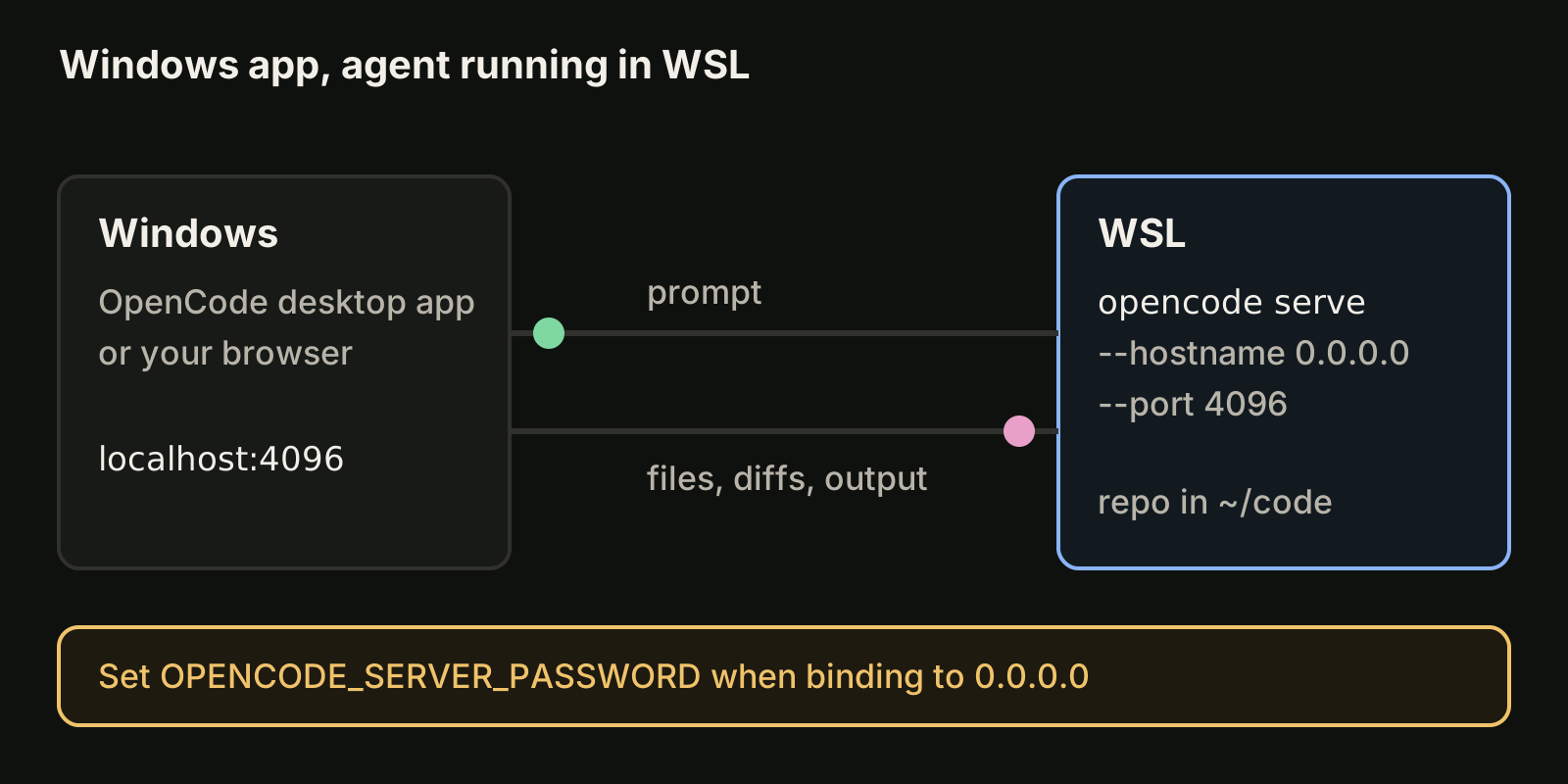
For the desktop app, start a server in WSL that accepts outside connections, then point the app at it:
OPENCODE_SERVER_PASSWORD=choose-a-password opencode serve --hostname 0.0.0.0 --port 4096Connect the desktop app to http://localhost:4096. If localhost does not work, run hostname -I in WSL and use that IP address instead. Always set OPENCODE_SERVER_PASSWORD when you bind to 0.0.0.0, because that address listens on every network interface.
For the browser, run opencode web --hostname 0.0.0.0 in the WSL terminal and open the URL it prints in your Windows browser. File access and terminal integration keep working because the agent itself still runs inside WSL.
If the desktop app opens to a blank window or will not start, install or update the Microsoft Edge WebView2 Runtime, which the troubleshooting page lists as a requirement.
Where OpenCode keeps its files on Windows
When something breaks, you usually need one of these folders. For a native install they are under your user profile. Paste them into the Run dialog (Win+R):
| What | Native Windows path |
|---|---|
| Logs (10 most recent) | %USERPROFILE%\.local\share\opencode\log |
| Credentials and session data | %USERPROFILE%\.local\share\opencode |
| Global config | %USERPROFILE%\.config\opencode\opencode.jsonc |
| Global plugins | %USERPROFILE%\.config\opencode\plugins |
| Provider package cache | %USERPROFILE%\.cache\opencode |
| Desktop app storage | %APPDATA% |
The credentials file, auth.json, holds your API keys and tokens. Never commit or share it.
Fix the other common errors
These come from the official troubleshooting page for OpenCode 1:
| Symptom | What to try |
|---|---|
| OpenCode will not start | Check the logs, run opencode --print-logs, and update with opencode upgrade |
| You need more detail | Run opencode --log-level DEBUG and reproduce the problem |
ProviderInitError | Usually a bad or corrupted config. Check the provider setup, delete %USERPROFILE%\.local\share\opencode, then run /connect again |
AI_APICallError or provider package errors | Delete %USERPROFILE%\.cache\opencode and restart so the packages reinstall |
| Model not available | Confirm you are signed in and use the provider/model format, then check opencode models |
| Desktop app crashes or hangs | Set "plugin": [] in the global config and re-enable plugins one at a time |
| Slow file access or terminal glitches | Move the project into WSL and run OpenCode there |
Deleting the data folder removes stored credentials and local session data, so treat it as a last resort and copy anything you want to keep first. Our guide to OpenCode models explains provider and model IDs if the model error persists.
Running OpenCode next to Codex and Claude Code
Many Windows developers use OpenCode alongside other agents. If you also run Codex, our guide to installing the Codex CLI covers its Windows setup, and OpenCode vs Codex compares the two. VibeiDE is a desktop app that coordinates the Codex, Claude Code and OpenCode CLIs you already installed; Windows is supported, macOS is fully validated, and OpenCode runs headless there with its activity recorded per task. Each project gets its own task queue, and finished work waits in Ready for review. See the OpenCode page or download VibeiDE for a 14-day trial that starts at first sign-in, without a card.
Common questions
How do I install OpenCode on Windows with PowerShell?
Run one of scoop install opencode, choco install opencode or npm install -g opencode-ai in PowerShell, open a new window and check opencode --version. Do not paste the curl ... | bash script into PowerShell.
Does OpenCode work on Windows without WSL?
Yes. Scoop, Chocolatey, npm, mise and Docker all install OpenCode 1 natively, and OpenCode 2 has a Windows standalone binary. The docs still recommend WSL for performance and full feature compatibility.
Can I run the curl install command in PowerShell?
No. In Windows PowerShell, curl is an alias for Invoke-WebRequest and there is no bash to run the script. Run that command inside WSL, or use a Windows package manager instead.
Should I install OpenCode 1 or OpenCode 2?
Both use the opencode command and cannot share it, so pick one. OpenCode 1 has the most install options on Windows today. OpenCode 2 ships a standalone Windows binary and reads your existing OpenCode 1 config.
Where are OpenCode logs on Windows?
In %USERPROFILE%\.local\share\opencode\log for a native install, or in ~/.local/share/opencode/log/ inside WSL.
Takeaways
- In PowerShell, install with exactly one of Scoop, Chocolatey or npm, then open a new window.
- Run OpenCode in WSL if you can; keep the repository inside the WSL file system for speed.
- The
curl ... | bashinstaller is for WSL, macOS and Linux, not PowerShell. - OpenCode 1 and 2 share the
opencodecommand; remove a package-managed OpenCode 1 before installing 2. - "Not recognized" is a
PATHproblem: open a new terminal, then checkwhere.exe opencodeandnpm prefix -g. - Drive a WSL install from Windows with
opencode serveoropencode web, and set a server password. - Logs, credentials and caches live under
%USERPROFILE%\.local\share\opencodeand%USERPROFILE%\.cache\opencode.