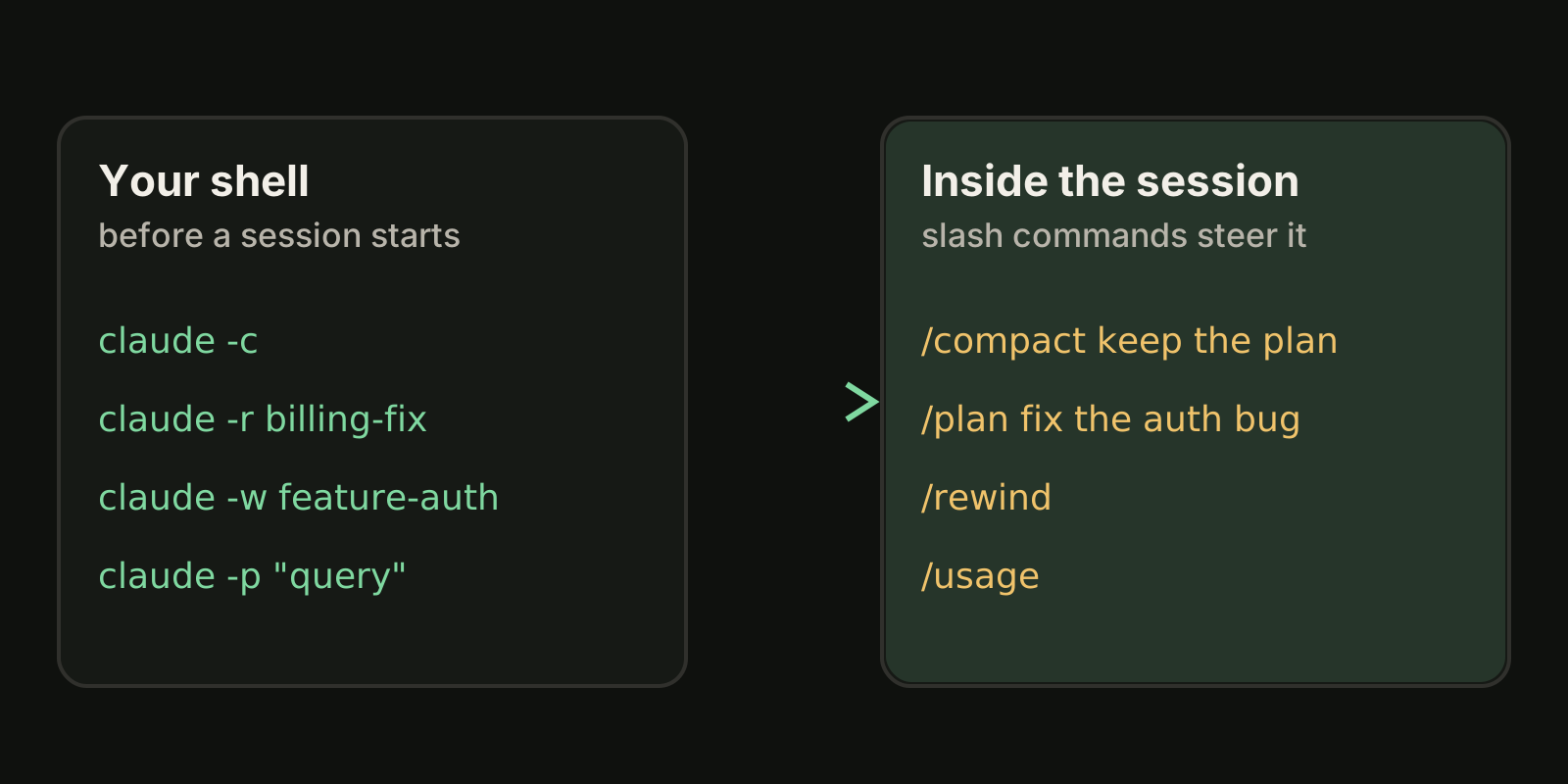
Claude Code has two command surfaces, and most confusion comes from mixing them up. CLI commands and flags are what you type in your shell before a session starts, such as claude -c or claude --permission-mode plan. Slash commands are what you type inside a running session, such as /compact or /rewind. This cheat sheet covers the ones you will use every day, grouped by the job they do, with the exact syntax from the official documentation as of October 2026.
Run claude --help for the flags your installed version knows, and type / inside a session to see every command available to you, including your own skills. The official CLI reference notes that --help does not list every flag, so check the docs when a flag seems missing.
Start, continue and resume sessions
These shell commands decide which conversation you land in. Picking the right one saves you from re-explaining a task.
| Command | What it does |
|---|---|
claude | Start an interactive session in the current directory |
claude "explain this project" | Start a session with a first prompt |
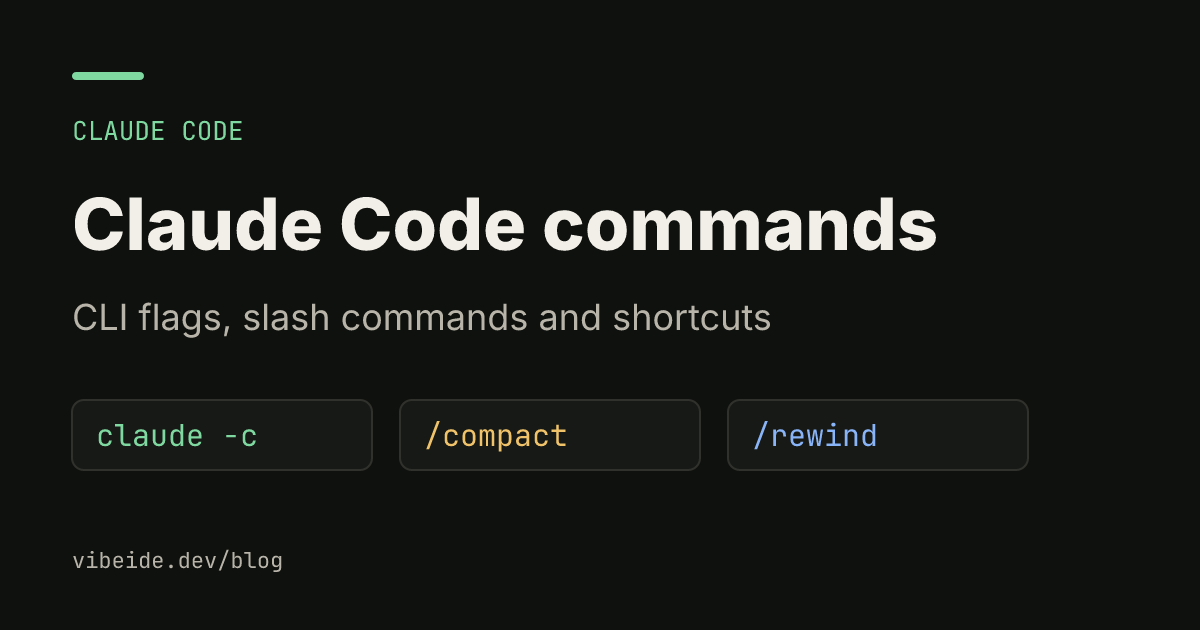
claude -c | Continue the most recent conversation in this directory |
claude -r "auth-refactor" | Resume a session by ID or name |
claude -r | Open the session picker |
claude -n "auth-refactor" | Give a new session a name you can resume later |
claude --resume abc123 --fork-session | Resume, but write to a new session ID |
claude -w feature-auth | Start in an isolated git worktree under .claude/worktrees/ |
claude update | Update to the latest version |
A few habits make these work better:
- Name sessions you will come back to.
claude -n "billing-fix"is easier to find than a UUID, andclaude -r billing-fixjumps straight back. - Use
-conly when the last conversation is the one you want. It picks the most recent session in the current directory. If you ran something else in between, use-rand the picker. - Fork before you experiment.
--fork-sessionkeeps the original conversation intact while you try a different direction.
The difference between continue and resume matters most when you run several sessions in one repository. We cover that workflow in run multiple Claude Code sessions.
Control a session with slash commands
Inside a session, a command is only recognized at the start of your message, and any text after it becomes its arguments. These are the built-in commands that change what Claude is working with.
| Command | Use it to |
|---|---|
/clear [name] | Start a new conversation with empty context |
/compact [instructions] | Summarize the conversation so far to free context |
/context | See context usage as a colored grid |
/resume [session] | Switch to another conversation by ID or name |
/rename [name] | Rename the current session |
/branch [name] | Branch the conversation at this point and switch into the branch |
/rewind | Restore the conversation or code to an earlier point (aliases /checkpoint and /undo) |
/export [filename] | Save the conversation as plain text |
/exit | Leave the CLI (alias /quit) |
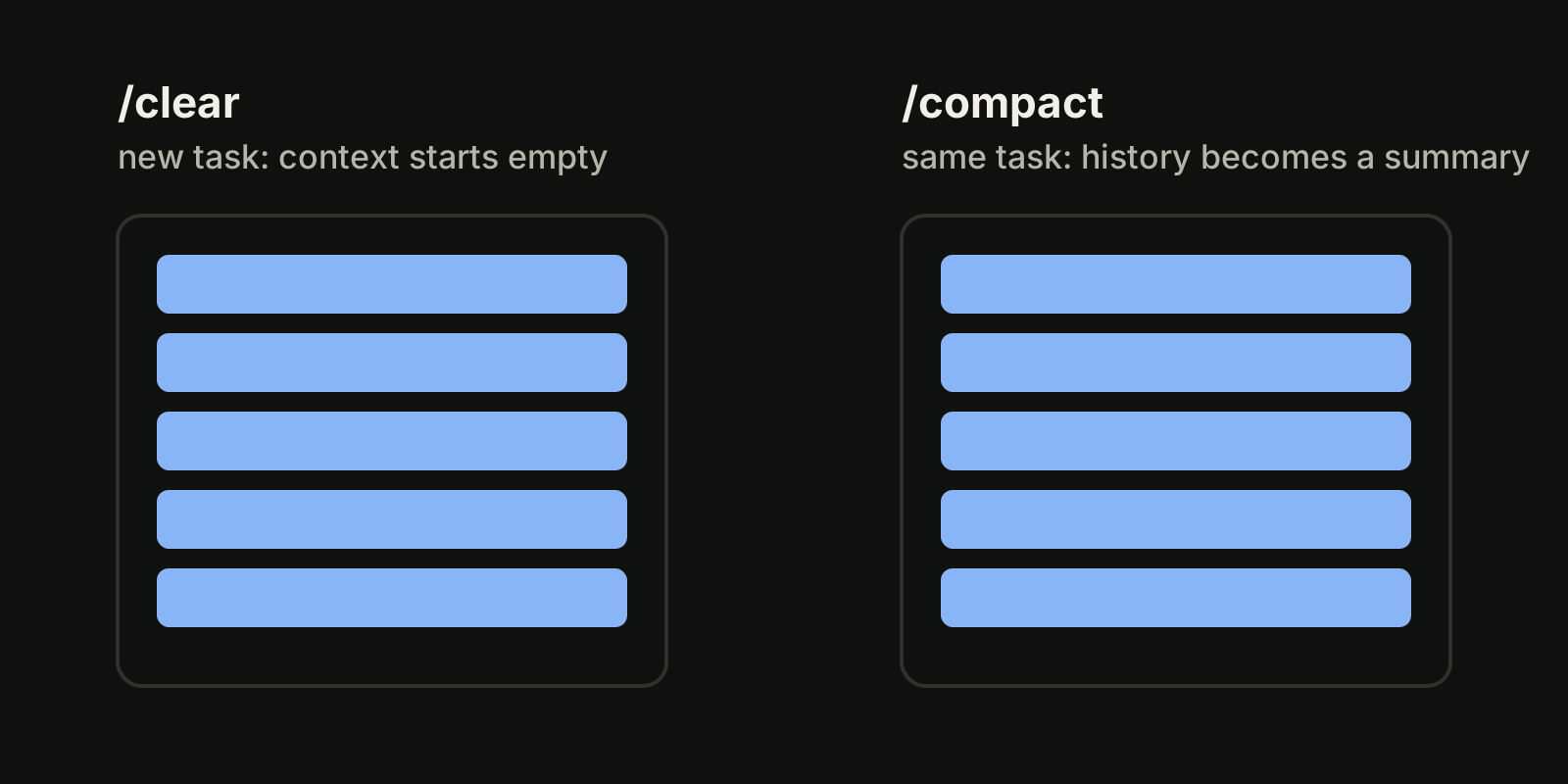
The pair people mix up most is /clear and /compact. /clear throws the context away and starts fresh, which is right when you switch to an unrelated task. /compact keeps working on the same task with a summary instead of the full history, which is right when a long task is running out of room. You can steer the summary: /compact keep the failing test names and the migration plan. For what survives compaction and how to read /context, see our guide to the Claude Code context window.
/rewind is the safety net. Pressing Esc twice on an empty prompt opens the same rewind menu, where you can restore code, conversation or both to an earlier message.
Plan, permissions, model and effort
These commands change how Claude works rather than what it knows.
| Command | Use it to |
|---|---|
/plan [description] | Enter plan mode, optionally with the task, for example /plan fix the auth bug |
/permissions | View and edit allow, ask and deny rules |
/model [model] | Switch the model; with no argument it opens a picker |
/effort [level] | Set the effort level, or /effort status to print it |
/config | Open settings, or set one directly, for example /config theme=dark |
/output-style [style] | List output styles or switch to one |
Shift+Tab cycles permission modes without typing a command: default, acceptEdits, plan, and the others your setup allows. If you want a session to start in a mode, set it from the shell instead with claude --permission-mode plan. Our guides to Claude Code plan mode and Claude Code permissions explain when each mode is safe.
Project setup, memory and extensions
| Command | Use it to |
|---|---|
/init | Create a CLAUDE.md guide for the project |
/memory | Edit CLAUDE.md files and manage auto memory |
/skills | List available skills |
/agents | Get help creating or managing subagents |
/hooks | View hook configurations |
/mcp | Manage MCP server connections and authentication |
/add-dir <path> | Give the session access to another directory |
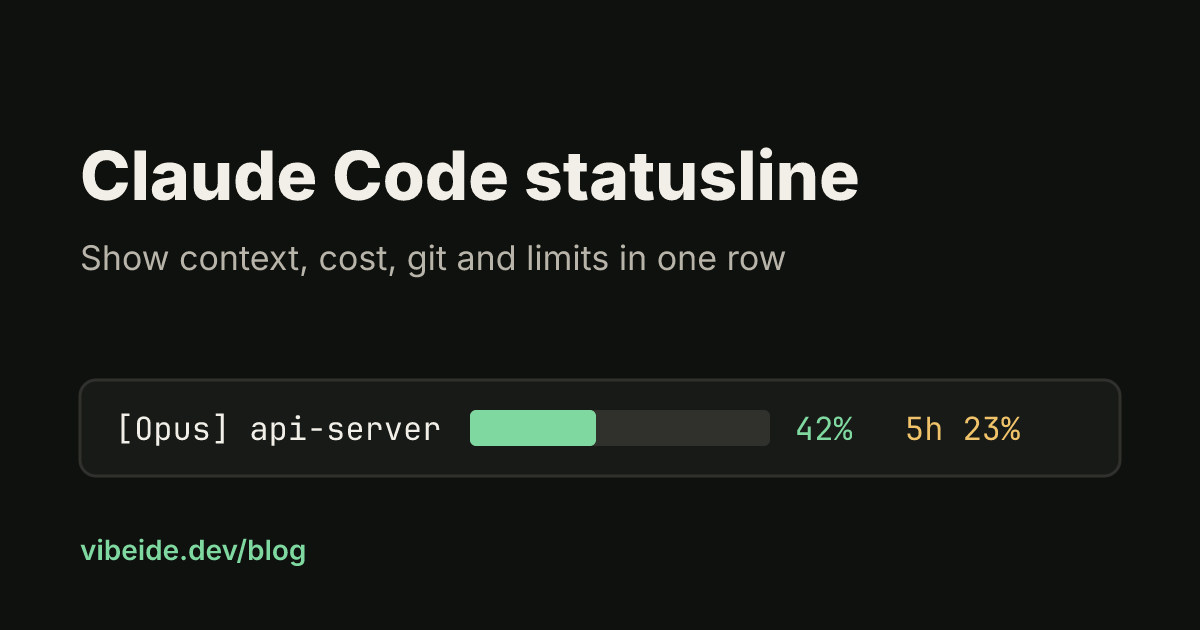
/statusline | Configure the status line (see our Claude Code statusline guide) |
Custom commands have been merged into skills. A file at .claude/commands/deploy.md and a skill at .claude/skills/deploy/SKILL.md both create /deploy, and existing command files keep working. If you are writing new commands, start with a skill. Our Claude Code skills guide shows the file layout and frontmatter.
Review, usage and diagnostics
| Command | Use it to |
|---|---|
/diff | Review the changes in your working tree, including Claude's edits |
/code-review | Review the current diff, a branch or a pull request for correctness bugs (alias /review) |
/security-review | Check the changes on your branch for security problems |
/usage | Show session cost, plan usage limits and activity (aliases /cost and /stats) |
/status | Show version, model, account and connectivity |
/doctor | Run a setup checkup that diagnoses and proposes fixes |
/tasks | View and manage background work in the session |
/btw [question] | Ask a side question without adding it to the conversation |
/status, /tasks and /usage run immediately even while Claude is responding, so you can check your limits mid-task. If you hit a limit often, our guide to Claude Code usage limits explains the session and weekly windows.
Input prefixes and shortcuts
Not everything is a slash command. Three prefixes change what your input means:
/at the start runs a command or skill.!at the start runs a shell command directly, adds its output to the session and lets Claude respond to it.! npm testis a quick way to show Claude a failure.@triggers file path autocomplete, so you can point Claude at a file without pasting it.
And a handful of keys do the rest:
| Key | Effect |
|---|---|
Esc | Interrupt Claude mid-turn; work done so far is kept |
Esc Esc | Clear the input draft, or open the rewind menu when the input is empty |
Shift+Tab | Cycle permission modes |
Ctrl+R | Search your prompt history |
Ctrl+O | Toggle the transcript viewer with detailed tool output |
Ctrl+B | Send running Bash commands and agents to the background |
Ctrl+C | Interrupt, or clear the input; a second press on an empty prompt exits |
The full list, including vim mode, is in the interactive mode reference.
Flags for scripts and CI
When Claude Code runs without you watching, these flags do most of the work:
# One answer, printed, then exit
claude -p "summarize the open TODOs in src/"

# Structured output for a script
claude -p "list failing tests" --output-format json

# Bound the run
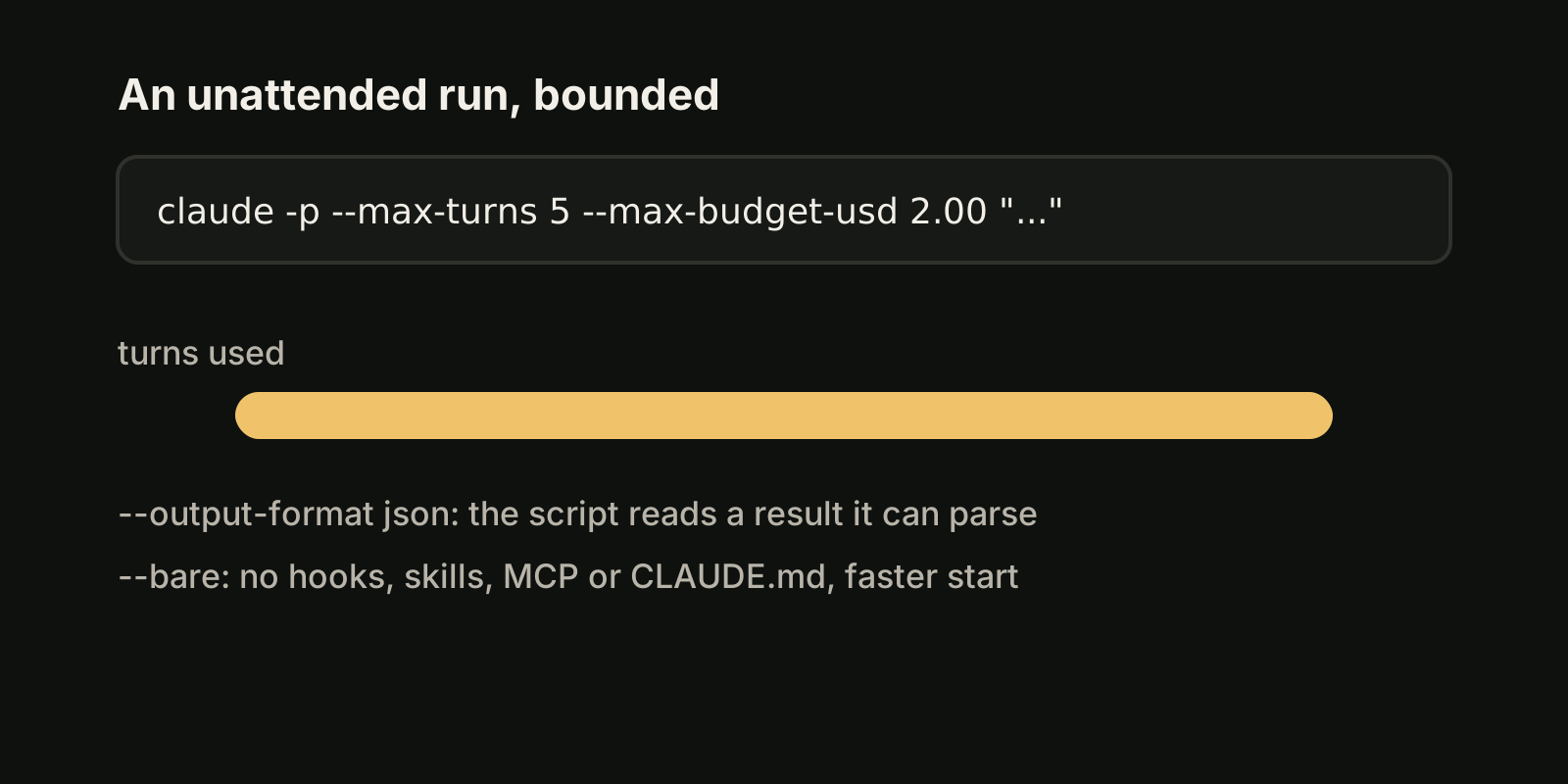
claude -p --max-turns 5 --max-budget-usd 2.00 "fix the lint errors"

# Skip auto-discovery for a faster, predictable start
claude --bare -p "explain this function"

# Pre-approve specific tools
claude -p "review the diff" --allowedTools "Bash(git diff *)" "Read"
--max-turns and --max-budget-usd only apply in print mode. --bare skips hooks, skills, plugins, MCP servers, auto memory and CLAUDE.md, which makes scripted calls faster but also means your project rules do not load. Our guide to Claude Code headless mode covers output formats, schemas and resuming in scripts.
Keep track when you run many sessions
Commands are per session. Once you have several Claude Code sessions open across projects, the hard part is no longer remembering /compact; it is remembering which terminal holds which request. VibeiDE is a desktop app that coordinates the Claude Code, Codex and OpenCode CLIs you already installed. Claude Code runs in embedded terminals that show the original CLI interface, so every command in this guide works as usual. Each project has its own task queue, each task keeps its saved provider conversation so a follow-up can continue it, and finished tasks wait in Ready for review. See Claude Code orchestration across your projects for how that fits around your existing setup.
Takeaways
- Shell commands and flags choose the session; slash commands steer it once it runs.
- Use
claude -nto name sessions andclaude -r <name>to return to them; use-conly for the last one. /clearis for a new task,/compactis for a long task that needs room, and/rewindundoes a wrong turn./plan,/permissions,/modeland/effortchange how Claude works;Shift+Tabcycles modes without typing.- Custom commands are now skills;
/skillslists them. - For scripts, combine
-pwith--output-format,--max-turnsand--max-budget-usd. - The commands reference is the source of truth; type
/in a session to see what your version supports.